


Xrm Data Management Studio for Dynamics 365
Extract Dataverse records with their files, and move them between environments.
- Available
- Windows app
- Version 1.0.0 ·
What it does
Xrm Data Management Studio, in six capabilities.
A Windows app for Dynamics 365 and Dataverse developers, consultants and admins. Filter any table, preview the records, export them to Excel, download their notes and file attachments, and migrate several tables to another environment in the order you choose, with a test run first.
Read the documentation- 01
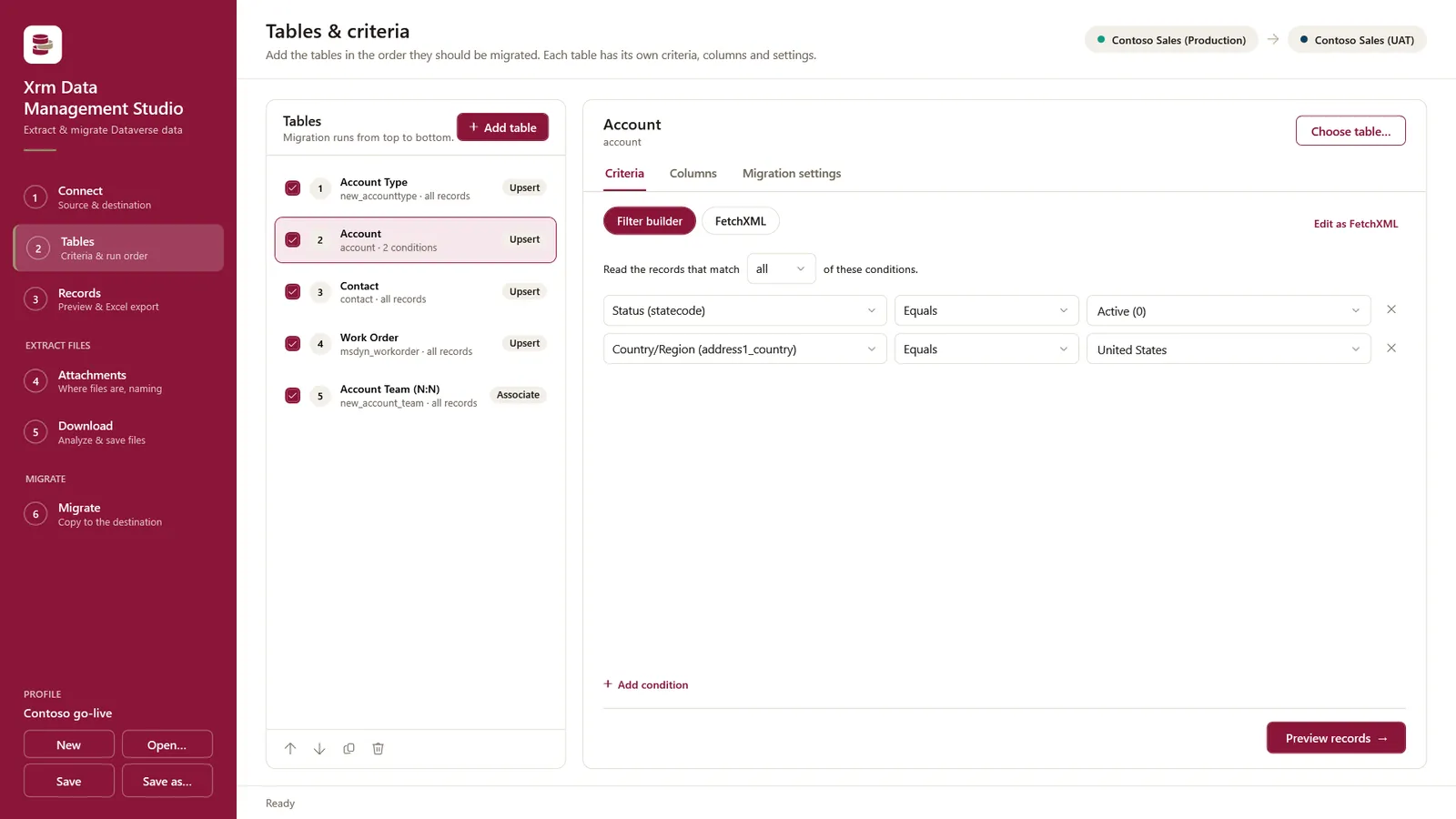
Filter any table
A condition builder with the right operators for each column type, or your own FetchXML, for example from Advanced Find.
- 02
Preview and export
See the records first, untick the ones to leave out, and export the columns you choose to Excel.
- 03
Download every file
Note attachments and file columns, also from related and child records, named with templates built from record values, with an Excel summary of every file.
- 04
Migrate in the right order
Copy several tables in sequence, each with its own filter. Create, update or upsert, and find existing records by ID or by your own key columns.
- 05
Keep relationships intact
Resolve lookups by the same ID or by matching columns, including owners. Copy status, notes, file columns and N:N links, and keep record IDs and the original created-on date.
- 06
Test first, then run
A test run shows what would be created, updated or skipped without writing anything. Batches, parallel requests, optional plug-in bypass and an exportable problem log handle large volumes.
Screenshots
See it in action.
-
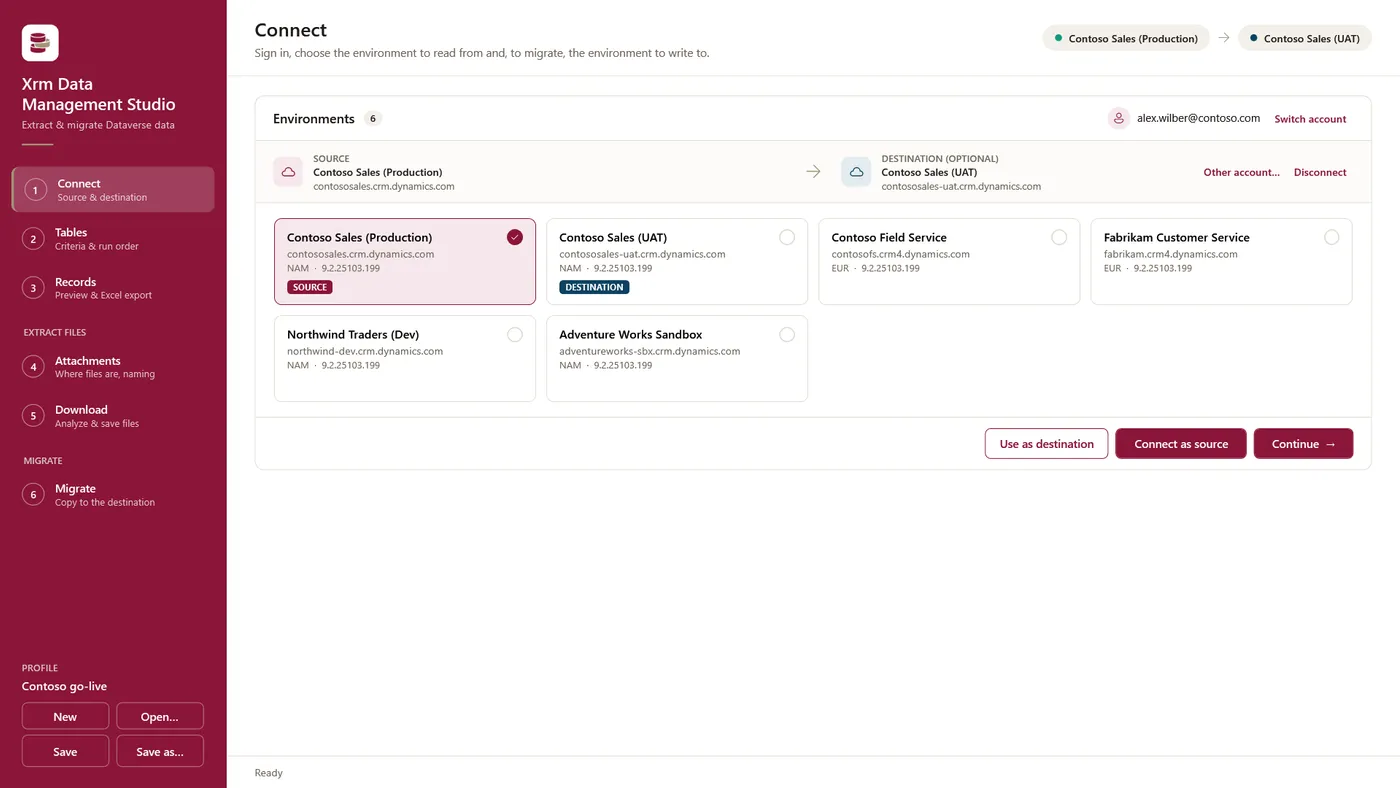
Sign in once and pick the source and destination environments. -
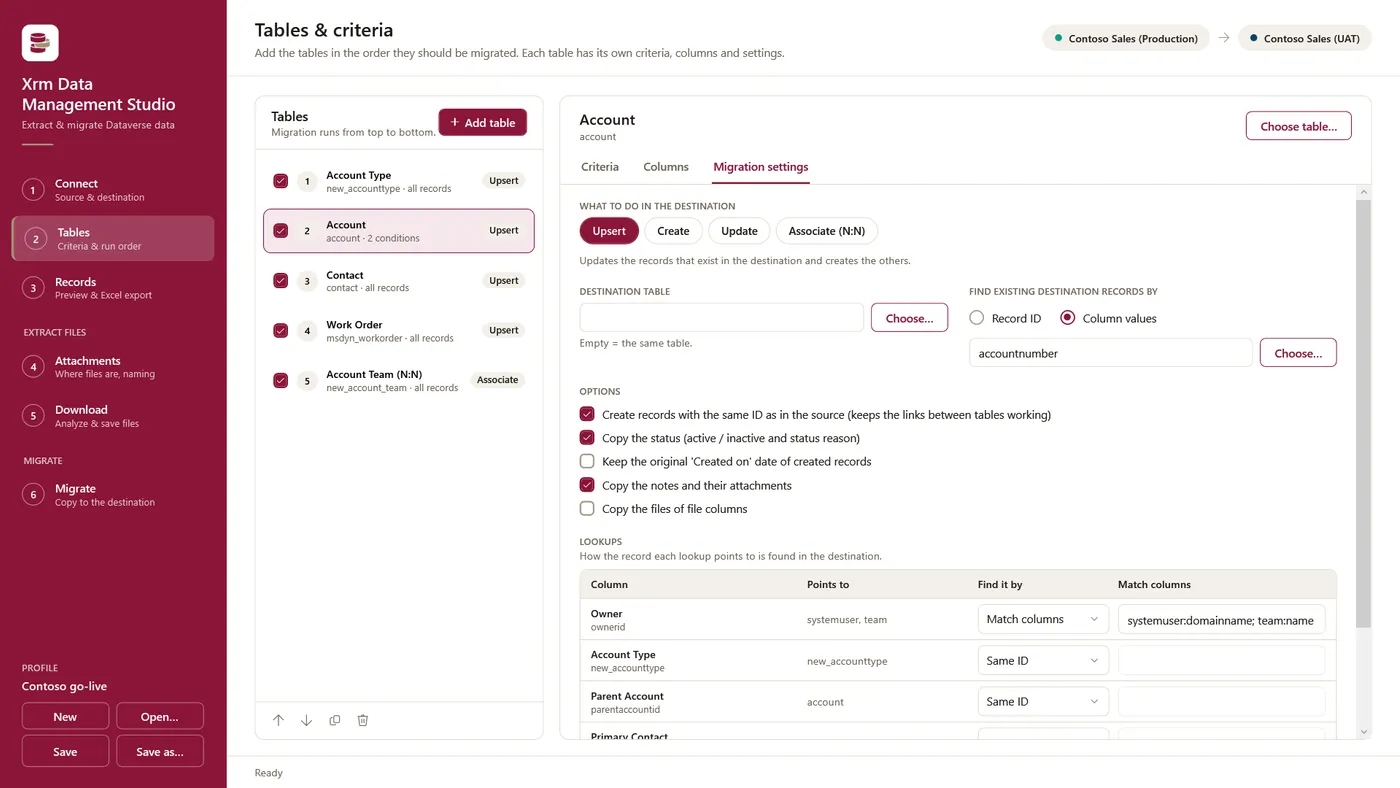
Upsert by key columns and choose how each lookup is found. -
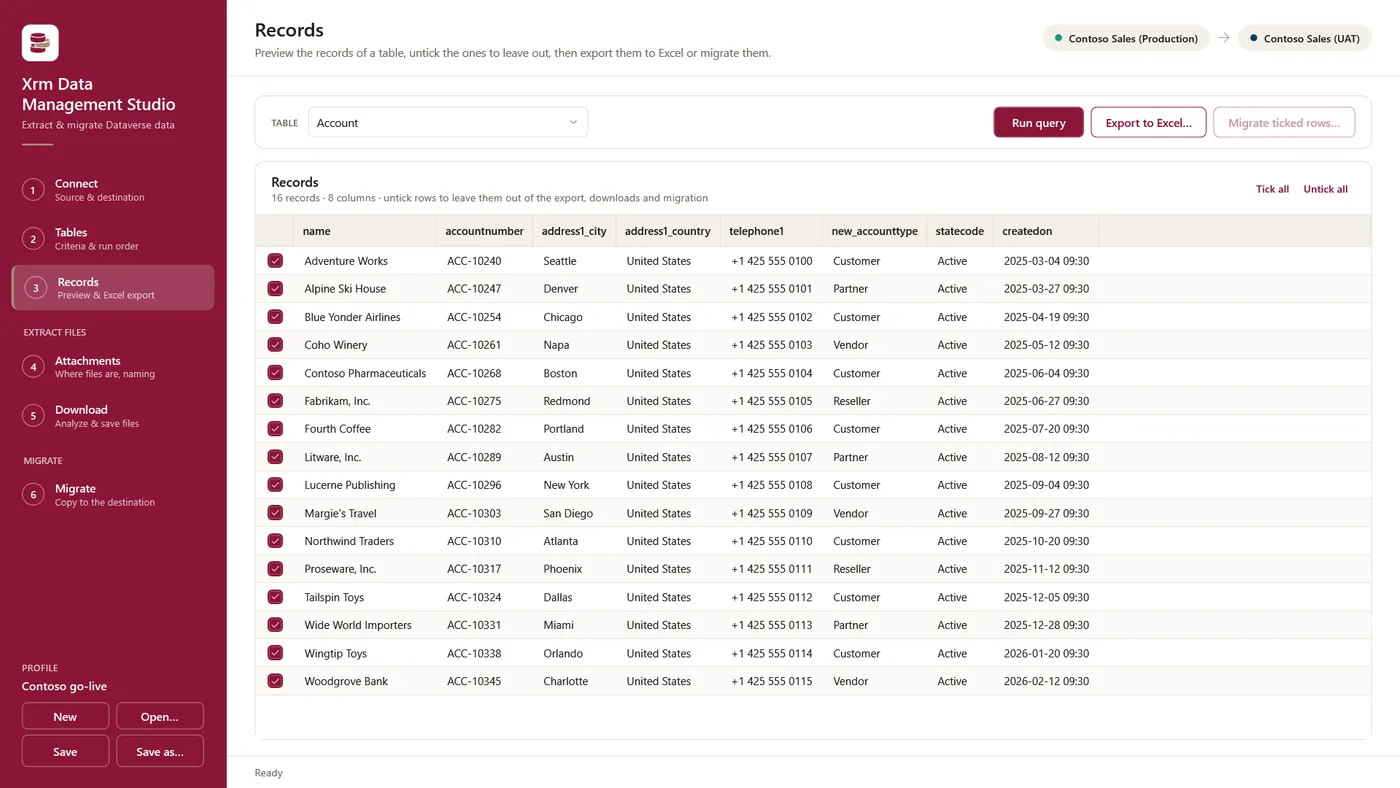
Preview the records, untick the ones to leave out and export to Excel. -
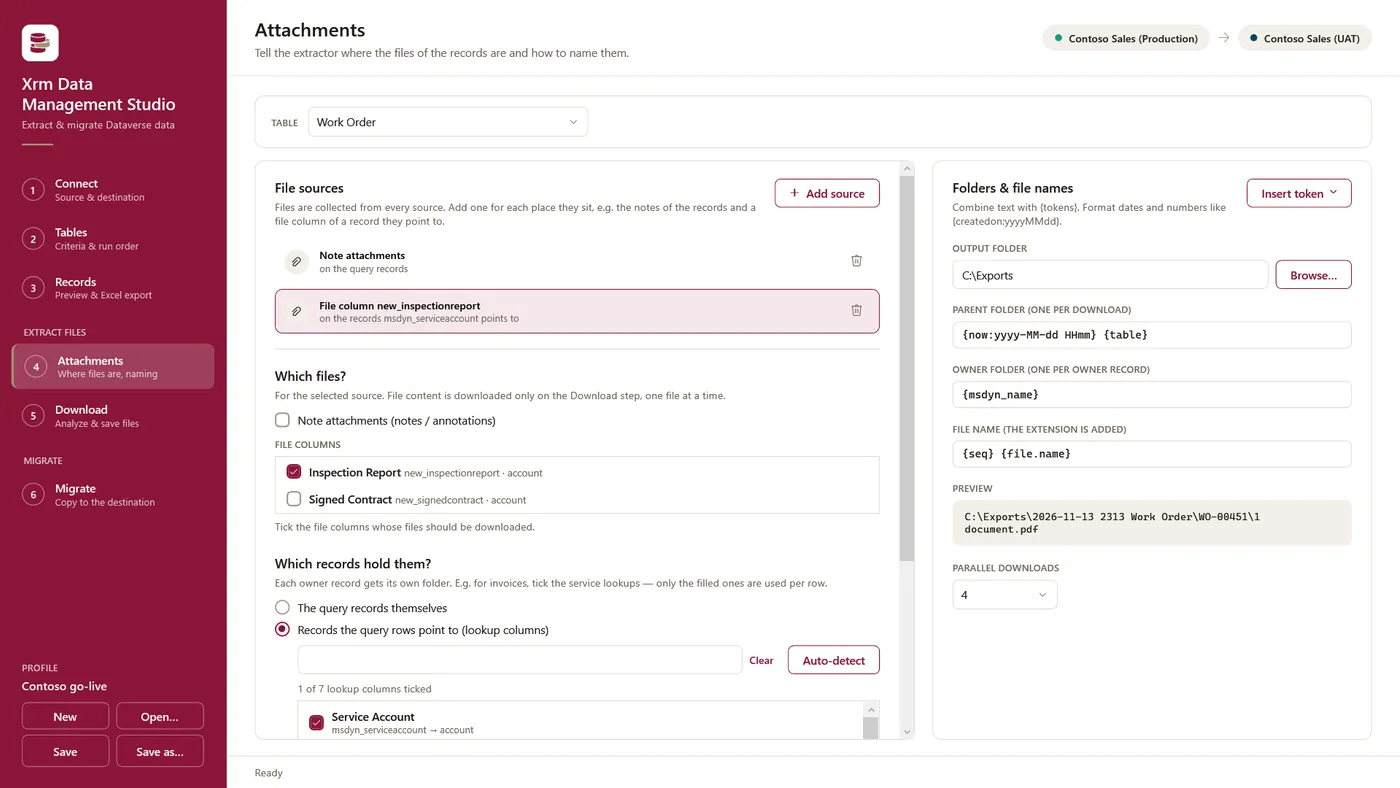
Collect notes and file columns, also from related records. -
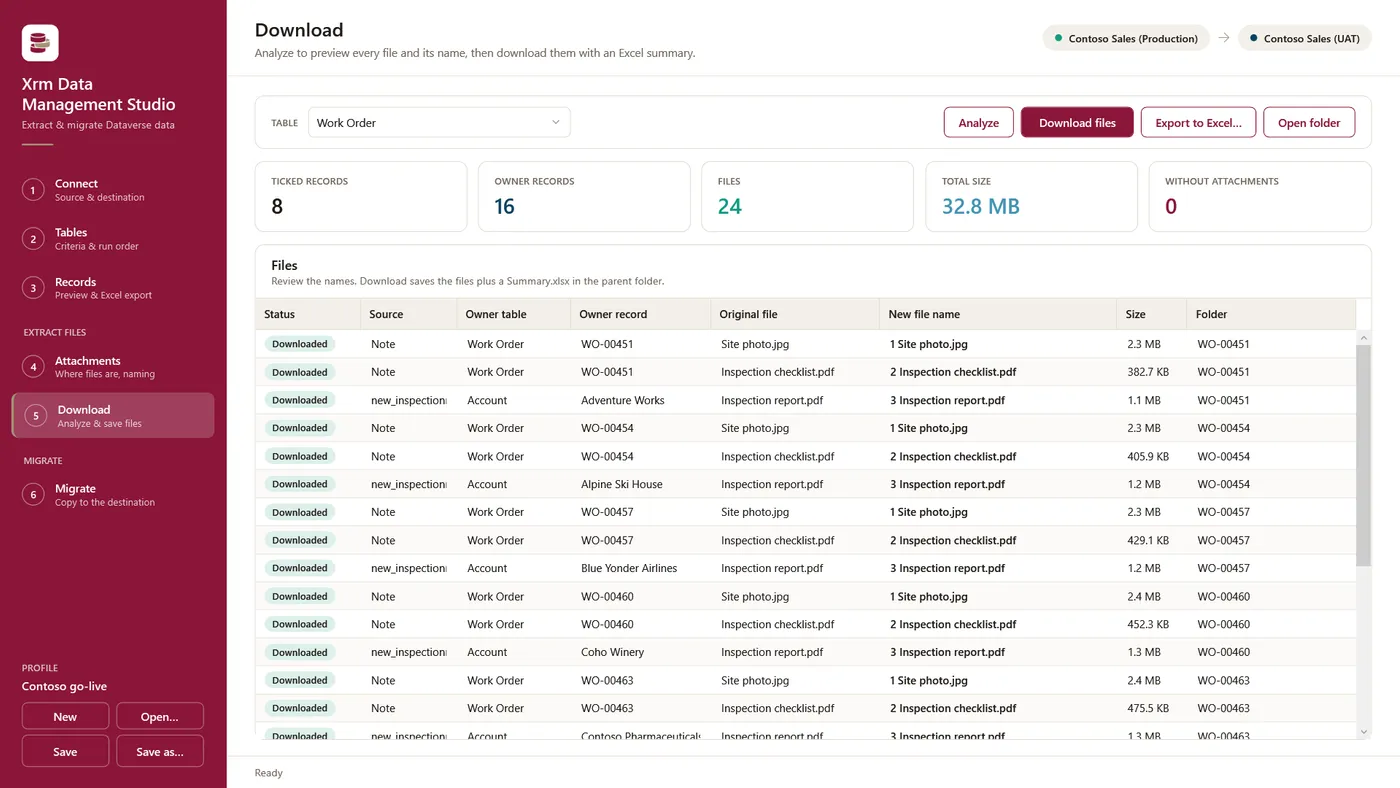
See every file with its final name before you download. -
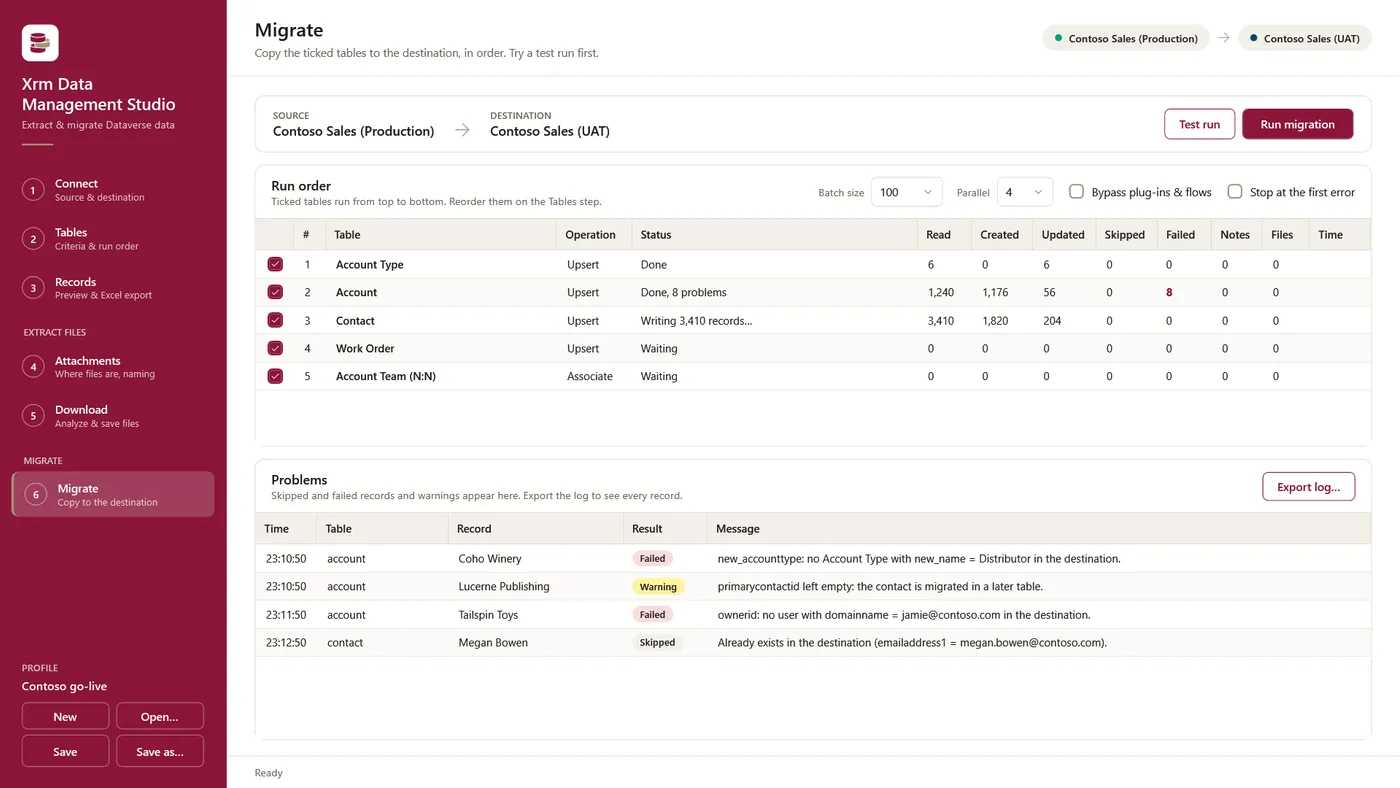
Run the migration and review the problems.
How it works
Three steps from install to answer.
- Step 1
Sign in
Sign in with your Microsoft work account and pick the environment to read from, plus a destination if you migrate.
- Step 2
Add tables
Add tables in run order, each with its own filter, columns and migration settings. Save everything as a profile.
- Step 3
Export, download or migrate
Preview the records, export them to Excel, download their files, or do a test run and then the real migration.
Privacy and security
What Xrm Data Management Studio reads, stores and sends.
No analytics, advertising or tracking. Every action runs with your own account and permissions.
- Reads
- The tables, records, notes and files you select, with the permissions of your own account.
- Stores
- Settings and profiles in your Windows user profile, and exports and downloads only in folders you choose. Sign-in tokens stay in memory.
- Sends
- Traffic goes directly from your PC to Microsoft sign-in, Dataverse discovery and your environments. Nothing is sent to XrmCraft.
Requirements
- Windows 10 (version 1809 or later) or Windows 11, 64-bit.
- Microsoft Edge WebView2 Runtime, included in Windows 11 and current Windows 10.
- Dynamics 365 or Dataverse online. On-premises is not supported.
- A Microsoft work or school account with access to the environments. Bypassing plug-ins needs the System Administrator role.
Windows capabilities
| Permission | Why it’s needed |
|---|---|
| Internet access | Sign in with Microsoft and read from and write to the environments you choose. |
| Full trust desktop app | Show the Microsoft sign-in window and save the Excel, profile and attachment files you choose. |
Price
Free
Every feature, free. No account needed.
Questions
Where do I get it?
From the Microsoft Store, for free. The Store link will be added here shortly.
Does it support Dynamics 365 on-premises?
Not at the moment. It connects to Dynamics 365 and Dataverse online through your Microsoft work or school account.
Can I try a migration without changing anything?
Yes. A test run reads the records, resolves lookups and finds existing records without writing anything, and lists what would be skipped or fail.
Are record IDs kept?
By default, created records get the same ID as in the source, so links between tables keep working. You can turn this off per table.
What about plug-ins and flows in the destination?
They run as usual unless you tick Bypass plug-ins & flows, which needs the System Administrator role in the destination.
Is my data sent anywhere?
No. The app connects directly from your PC to Microsoft and to your environments. It has no analytics or tracking.