


Utility Center for Dynamics 365
The all-in-one action console for Dynamics 365 and Power Apps model‑driven apps.
- Available
- Chrome & Edge extension
- Version 1.0.5 ·
- 5.0 · 2 ratings on the Chrome Web Store (opens in a new tab)
What it does
Utility Center, in six capabilities.
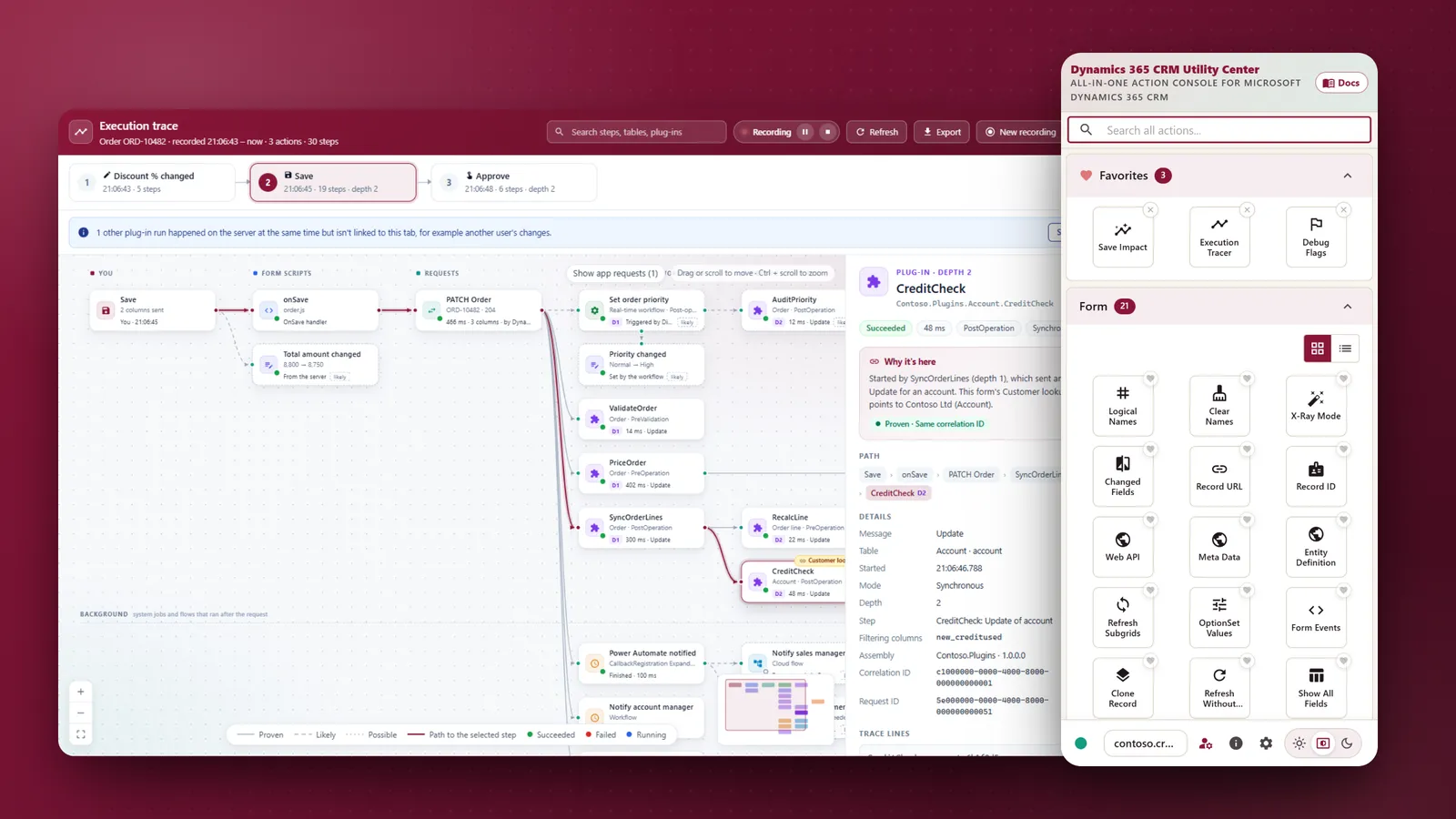
A browser extension for Chrome and Edge that opens in the side panel next to your app and puts more than 50 tools one click away, from form inspection and impact previews to plug-in tracing and access checks.
Read the documentation- 01
Understand any form
Show logical names, highlight changed fields, reveal and unlock every field with X‑Ray Mode, and list every event handler with the script behind it.
- 02
See the impact before you act
Save Impact lists the scripts, plug-ins, workflows, business rules and flows a save will start. Delete Record shows what is deleted, unlinked or blocking before anything is removed.
- 03
Trace what really ran
Execution Tracer records changes, saves and commands, then draws the scripts, requests, plug-ins with their depth, system jobs and cloud flows as a chart.
- 04
Answer access questions
Check anyone's roles, decode access-denied errors, see why a user can't open a record and the smallest fix, and impersonate users.
- 05
Build and debug faster
Debug flags, Command Checker, FetchXML, Dataverse REST Builder, a web resource editor, translations, plug-in step skipping and environment variable checks.
- 06
Make it yours
Search every action, keep favorites at the top, save your own JavaScript commands, and choose colors, font size and auto-close.
Screenshots
See it in action.
-
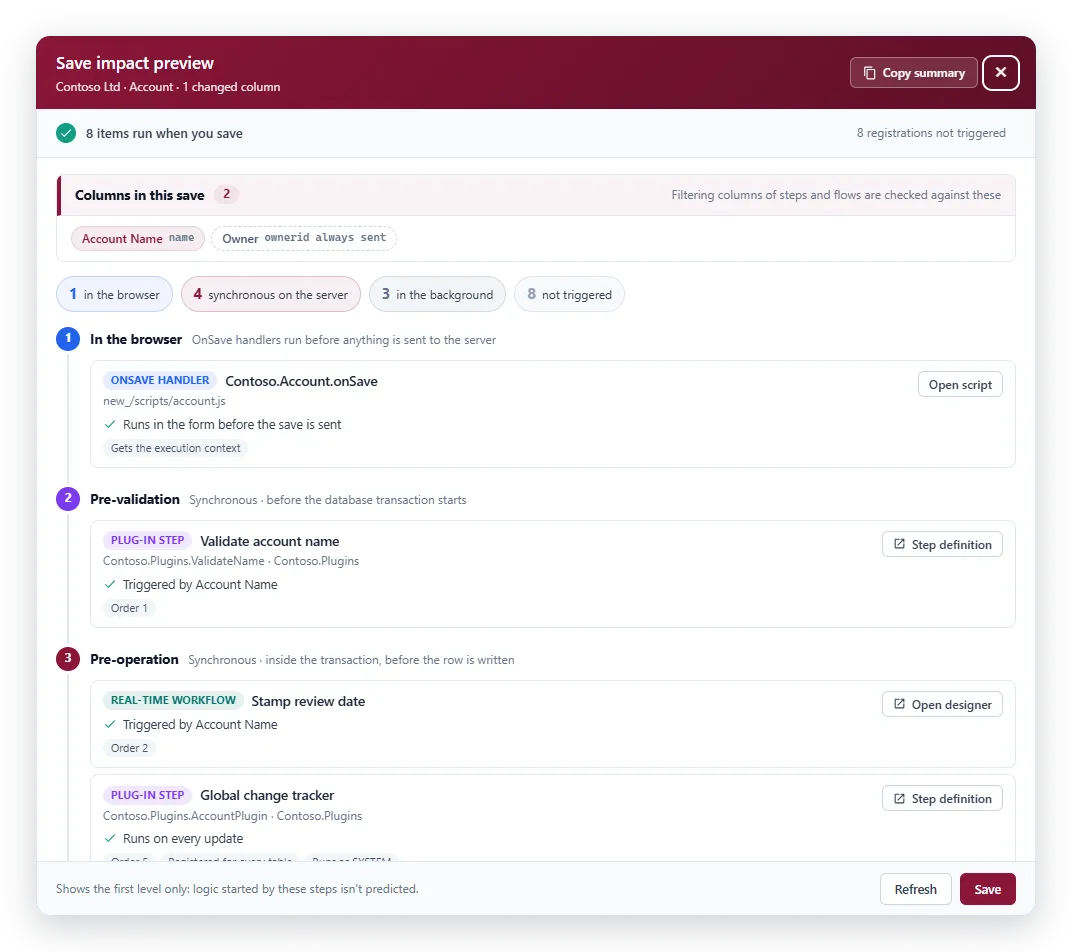
Save Impact shows what a save will start, in the order it runs, and why. -
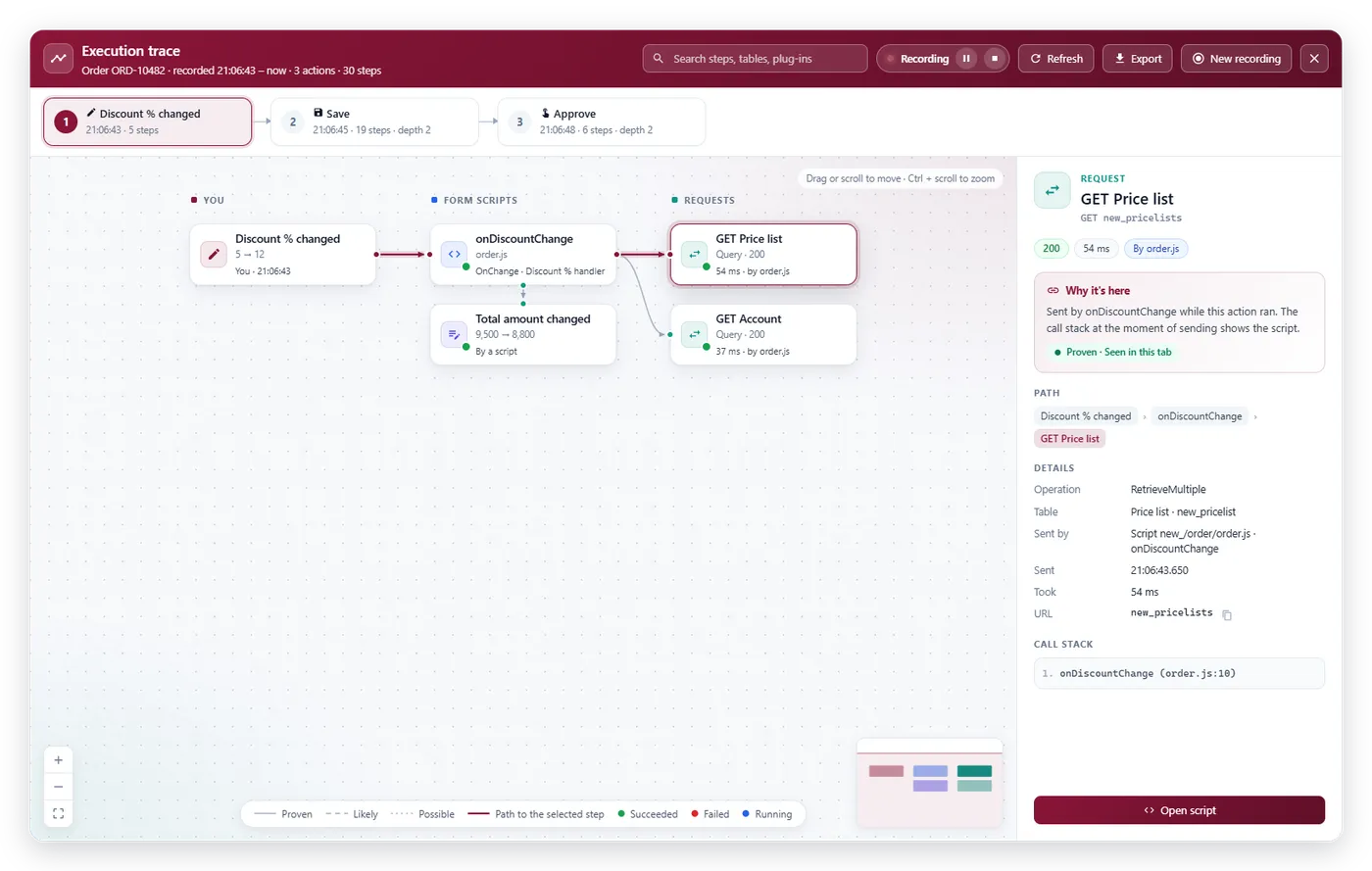
Execution Tracer turns a change into a chart of scripts, requests and plug-ins. -
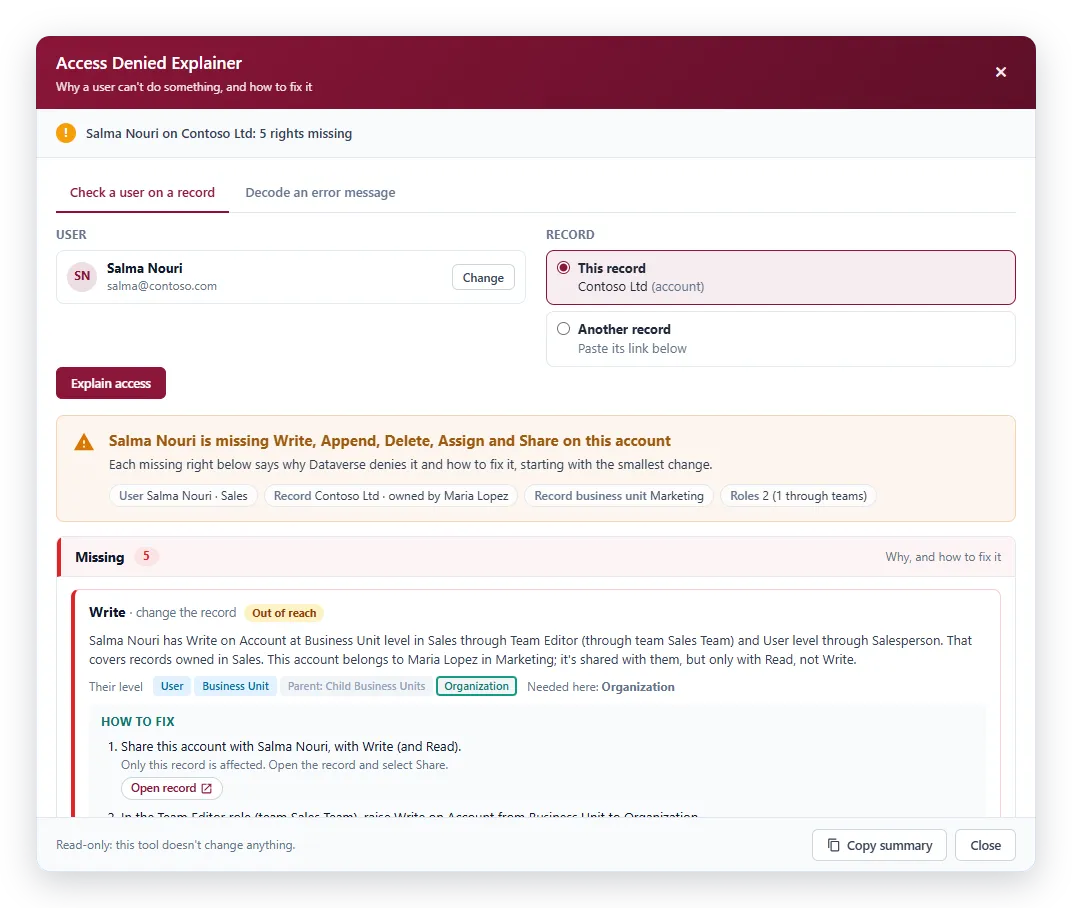
Access Denied Explainer finds the missing rights and the smallest fix. -
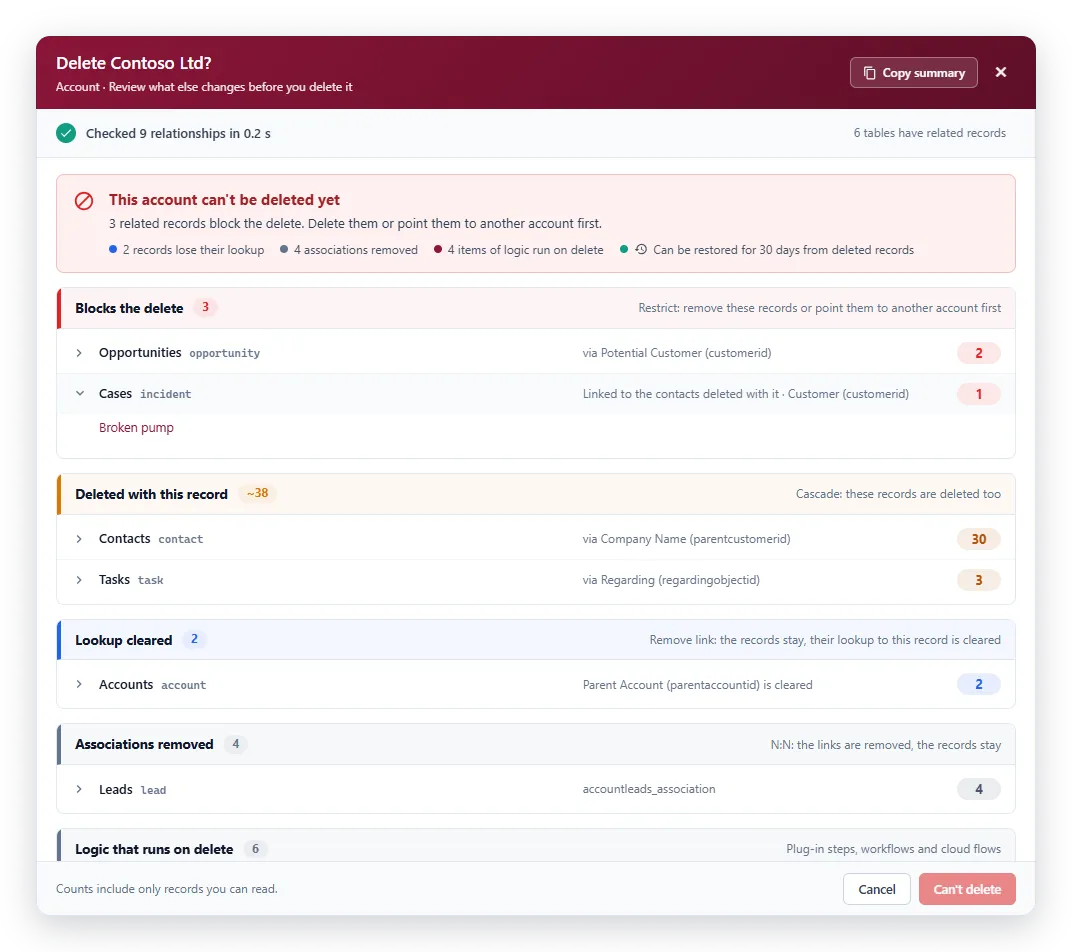
Delete Record previews what a delete removes, unlinks or is blocked by. -
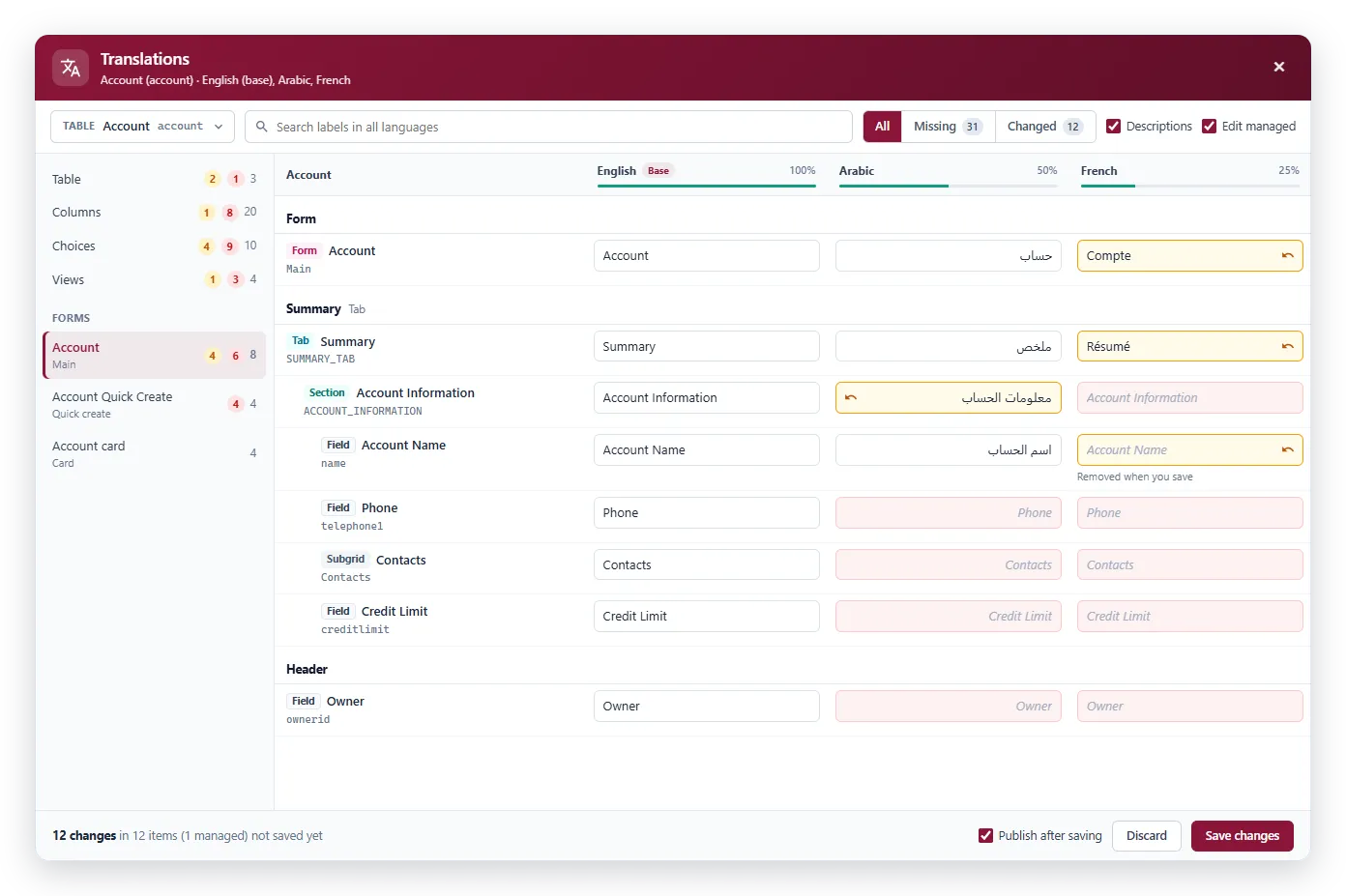
Translations puts every language side by side and saves only what changed. -
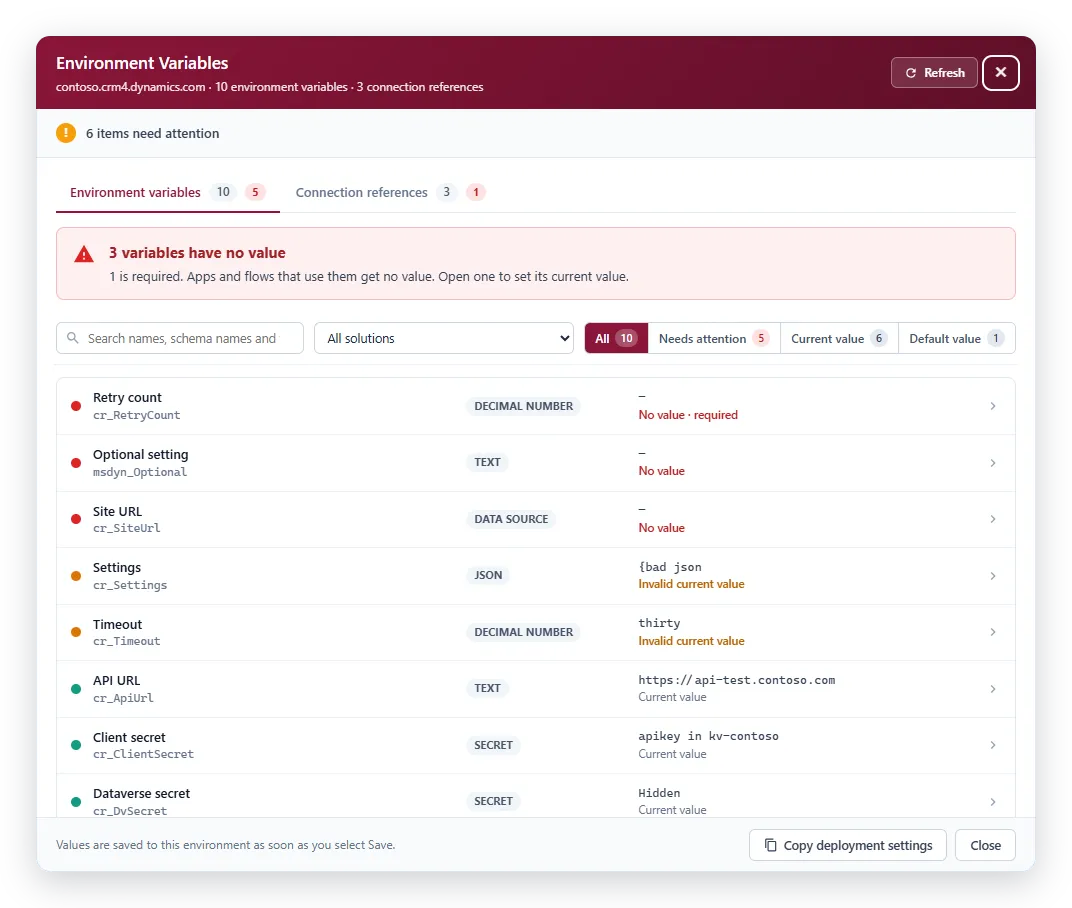
Environment Variables puts missing values and broken connection references first.
How it works
Three steps from install to answer.
- Step 1
Install
Add the extension from the Chrome Web Store or Microsoft Edge Add-ons, then pin it to the toolbar.
- Step 2
Open it next to your app
Open a Dynamics 365 or Power Apps page, then select the extension icon or press Alt+Shift+D.
- Step 3
Run any action
Search all actions or browse the sections. Every action runs with your own account and security roles.
Privacy and security
What Utility Center reads, stores and sends.
No analytics, advertising or tracking. Every action runs with your own account and permissions.
- Reads
- The page you are on and the data Dynamics 365 returns for the actions you run.
- Stores
- Settings, favorites, recent actions, your commands and usage statistics, in your browser's extension storage.
- Sends
- Requests go only to your Dynamics 365 environment, the Microsoft pages you open, and Microsoft sign-in if you ask for a token in Dataverse REST Builder.
Requirements
- Google Chrome or Microsoft Edge, current version.
- Dynamics 365 CRM, online or on-premises, or a Power Apps model-driven app.
- A Dynamics 365 user account. Tools that need extra privileges say so on their pages.
- A few actions open online-only pages, such as the Power Platform admin center.
Browser permissions
| Permission | Why it’s needed |
|---|---|
| Side panel | Show the extension in the browser side panel, next to your page. |
| Active tab and scripting | Run the actions you choose in the Dynamics 365 tab. |
| Storage | Keep your settings, favorites, recent actions and commands in your browser. |
| Context menus | Add "Open Dynamics 365 CRM Utility Center" to the right-click menu. |
| Network request rules | Add the header Dataverse uses for impersonation and for skipping plug-in steps, only while you use those features. |
| Access to https sites | Dynamics 365 can run on any domain, including on-premises servers. The extension only acts on Dynamics 365 pages. |
Questions
Is Utility Center free?
Yes. Every tool is free. If the extension saves you time, you can support its maintenance on Ko-fi. That's optional and doesn't unlock anything.
Does it work with on-premises Dynamics 365?
Yes. It works with Dynamics 365 CRM online and on-premises and with Power Apps model-driven apps. A few actions open Microsoft online pages, such as the Power Platform admin center, and need Dynamics 365 online.
Can it do more than my security roles allow?
No. Every action runs with your account, and Dataverse checks every request. Tools that need more privileges say so; for example, impersonation needs the Act on Behalf of Another User privilege.
Does it send my data anywhere?
No. It talks only to the Dynamics 365 environment you are working in and to the Microsoft pages you choose to open. There is no analytics or tracking, and your settings stay in your browser.
Why does it ask for access to all https sites?
Dynamics 365 can be hosted on any domain, including on-premises servers, so the extension needs to recognize it wherever it runs. It only acts on Dynamics 365 pages.
How do I report a problem or suggest a feature?
Create a ticket on the support site, or select the information button in the side panel and then Create ticket.