Utility Center for Dynamics 365
Utility Center is a browser extension for Google Chrome and Microsoft Edge. It opens in the browser’s side panel, right next to your Dynamics 365 app, and puts more than 50 tools one click away for administrators, developers, consultants and power users.
It works with the account you’re already signed in with and within your security roles. There’s nothing to set up and no server in between: your data goes only between your browser and your Dynamics 365 environment.
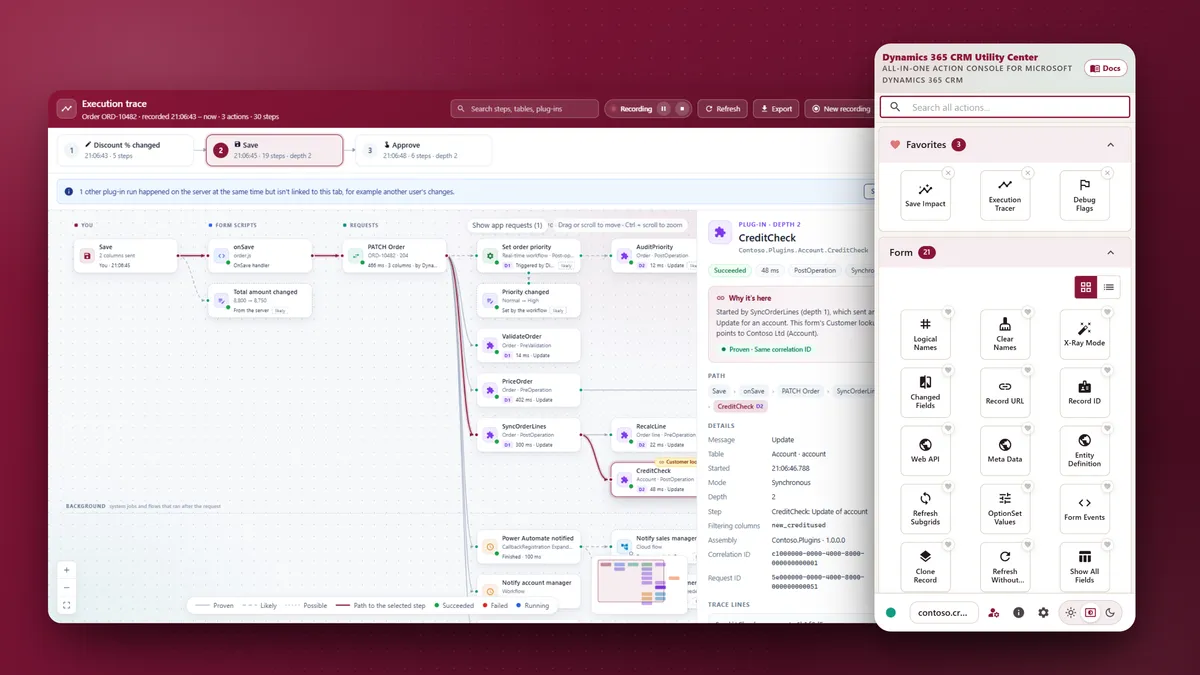
In the stores, the extension is listed as Dynamics 365 CRM Utility Center. Install it from the Chrome Web Store or Microsoft Edge Add-ons.
What you can do
Section titled “What you can do”- Understand any form. Show logical names, highlight changed fields, reveal and unlock every field, and list the scripts behind every event.
- See the impact before you act. Preview what a save starts and what a delete removes, and find everything that uses a column.
- Trace what really ran. Record a change, save or command and see it as a chart: the scripts, the requests they sent, the plug-ins with their depth, real-time workflows, system jobs and cloud flows.
- Work faster with records. Copy record links and IDs, clone records with their related records, edit any column, compare audit history values side by side, and open records by ID.
- Manage security and access. Check anyone’s roles, find out why a user is denied access and how to fix it, impersonate users, and bulk-edit user settings.
- Debug and build. Switch Microsoft’s debug flags, run FetchXML, build Web API requests, edit web resources, translate labels, skip plug-in steps on your own saves, and check environment variables after a deployment.
Get started in a minute
Section titled “Get started in a minute”- Install the extension from the Chrome Web Store (Google Chrome) or Microsoft Edge Add-ons (Microsoft Edge).
- Open any Dynamics 365 or Power Apps model-driven app page.
- Select the extension icon in the browser toolbar, or press Alt+Shift+D. The side panel opens next to the page.
- Type what you’re looking for in Search all actions, or browse the sections, and select an action.
Explore the documentation
Section titled “Explore the documentation” Getting started Install the extension, open the side panel and find your way around.
All tools Every action at a glance.
Form tools Inspect forms and records, and preview saves and deletes.
Execution Tracer Record what a change, save or command starts, and explore it as a chart.
Navigation Open records, lists, processes and admin pages.
Security & access Roles, access checks and impersonation.
Debugging & development Debug flags, FetchXML, Web API, web resources, translations, plug-in steps and environment variables.
Personalize Favorites, your own commands, appearance and auto-close.
Requirements
Section titled “Requirements”- Google Chrome or Microsoft Edge, current version.
- Microsoft Dynamics 365 CRM (online or on-premises) or a Power Apps model-driven app.
- A Dynamics 365 user account. Every tool works within your security roles; tools that need more privileges say so on their pages.