Form tools
Form tools work on the record form that’s open in the tab. Open a record, then select a tool in the Form section of the side panel.
Inspect the form
Section titled “Inspect the form”Logical Names and Clear Names
Section titled “Logical Names and Clear Names”Logical Names shows the logical name next to every field, tab and section, so you can find the right column for a script, a view or an integration. Clear Names puts the original labels back.
X-Ray Mode
Section titled “X-Ray Mode”Shows every field on the form, including hidden ones, and makes all fields editable. Use it to check values that the form hides or locks. Your security roles still apply when you save.
Changed Fields
Section titled “Changed Fields”Highlights the fields you changed on the form since it was loaded, so you can review them before you save.
Show All Fields
Section titled “Show All Fields”Lists every column of the record and its value in a searchable table, including columns that aren’t on the form.
OptionSet Values
Section titled “OptionSet Values”Lists the choice columns on the form with each option’s label and numeric value.
Form Events
Section titled “Form Events”Lists every event handler on the form: OnLoad and OnSave, field OnChange, grid OnRecordSelect, OnChange and OnSave, and tab state changes. Each handler shows its function, library, whether it receives the execution context and whether it’s enabled. Select a function or library to open the script in the Web Resource Editor, at that function.
Refresh Subgrids, Refresh Without Save and Form Editor
Section titled “Refresh Subgrids, Refresh Without Save and Form Editor”- Refresh Subgrids reloads every subgrid on the form.
- Refresh Without Save reloads the form and discards your unsaved changes, without auto-saving them first.
- Form Editor opens the current form in the modern or classic form editor.
Record links and data
Section titled “Record links and data”Record URL and Record ID
Section titled “Record URL and Record ID”Copy the record’s link or its GUID to the clipboard, ready to share or paste into a query.
Web API, Meta Data and Entity Definition
Section titled “Web API, Meta Data and Entity Definition”Open the record, the table’s metadata or the full table definition from the Dataverse Web API in a new tab. The response is shown in a formatted viewer: fold and unfold objects, filter, switch to the raw text, copy or download it. Errors returned by Dataverse are shown clearly at the top.
Edit All Fields
Section titled “Edit All Fields”Edit any column of the record, including columns that aren’t on the form, with drop-downs for choices and search for lookups. Changes are saved directly through the Web API, with your security roles.
Audit History
Section titled “Audit History”Shows the record’s audit history when auditing is turned on for the table. Values are formatted, long values wrap, and Compare shows the old and the new value side by side with the differences highlighted.
Before you save or delete
Section titled “Before you save or delete”Save Impact
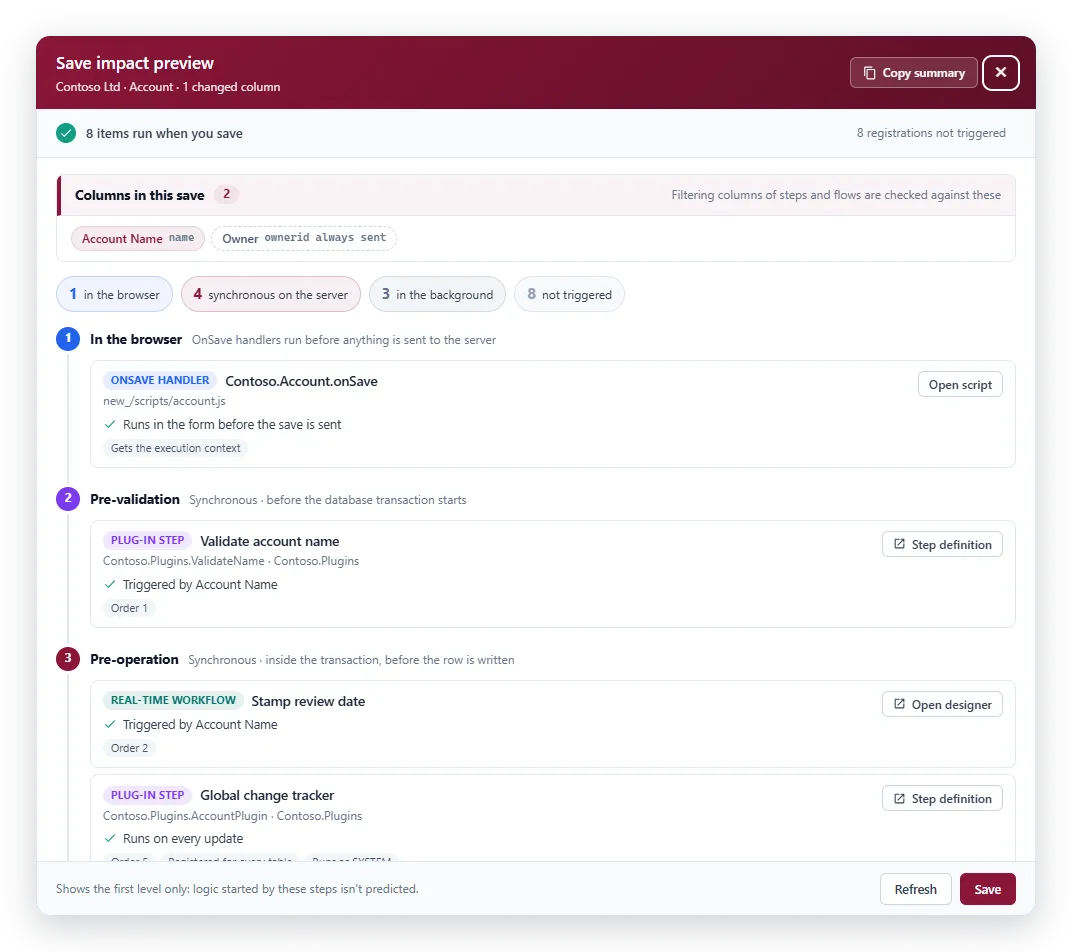
Section titled “Save Impact”Before you save, see everything the save will start, in the order it runs:
- OnSave scripts on the form.
- Plug-in steps and webhooks, by stage and order.
- Real-time and background workflows.
- Business rules.
- Cloud flows that trigger on the table.
Each item says why it runs, or why it doesn’t, for the columns you changed. Make more changes and refresh the preview, then save from the preview when you’re ready.
Delete Record
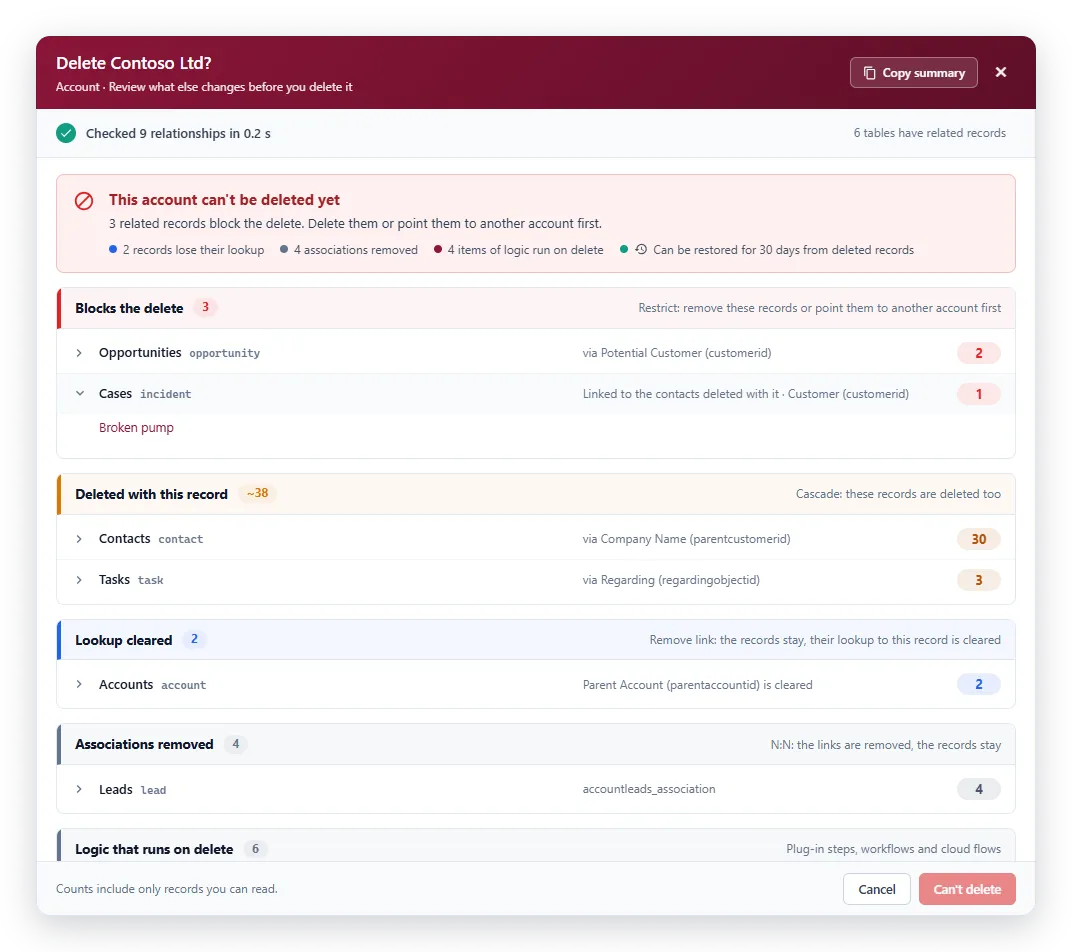
Section titled “Delete Record”Previews a delete before anything is removed:
- Related records that are deleted with it, two levels deep.
- Records that block the delete.
- Lookups that are cleared and N:N links that are removed.
- The plug-ins, workflows and flows that run on delete.
- Whether the record can be restored afterwards.
Then delete from the preview, or cancel.
Understand the table
Section titled “Understand the table”Field Dependencies
Section titled “Field Dependencies”Pick any column of the table to see everything that uses it, each with a link to open it directly:
- Forms and their OnChange events.
- Scripts, with the line and function: form libraries, OnChange libraries, HTML web resources on the form and command bar libraries.
- Cloud flows, business rules, business process flows, and workflows and actions.
- Views and charts.
- Plug-in steps and images.
- Command bar rules.
- Calculated and rollup columns, relationships, keys and mappings, and security.
Table Processes
Section titled “Table Processes”Lists the table’s cloud flows, workflows, actions, business rules, business process flows and custom APIs, with their status. Open any of them, or view and copy its definition as JSON or XAML.
Copy a record
Section titled “Copy a record”Clone Record
Section titled “Clone Record”Choose how to copy the record:
- Clone opens a new, unsaved form filled with the record’s values, for you to review and save.
- Clone & Save saves a copy straight away.
You can also choose related tables to copy their records with it.
Trace what runs
Section titled “Trace what runs”Execution Tracer
Section titled “Execution Tracer”Records what changes, saves and commands start, from the form scripts to plug-ins, workflows, system jobs and cloud flows, and shows each action as a chart. See Execution Tracer.