Personalize
Make the side panel yours: keep the tools you use most at hand, add your own commands and choose how the panel looks and behaves.
Keep your tools at hand
Section titled “Keep your tools at hand”- Search all actions, at the top of the panel, filters every section as you type.
- Favorites: select the heart on any action to keep it at the top of the panel. Select it again to remove it.
- Recently Used shows the actions you used last.
My Commands
Section titled “My Commands”Save your own JavaScript snippets and run them on the current page with one click. Your code can use the Dynamics 365 client API (Xrm), for example to read or set values on the form.
- Create, edit and delete commands in the My Commands section.
- Export your commands as a JSON file to back them up or share them, and import commands from a file.
Appearance
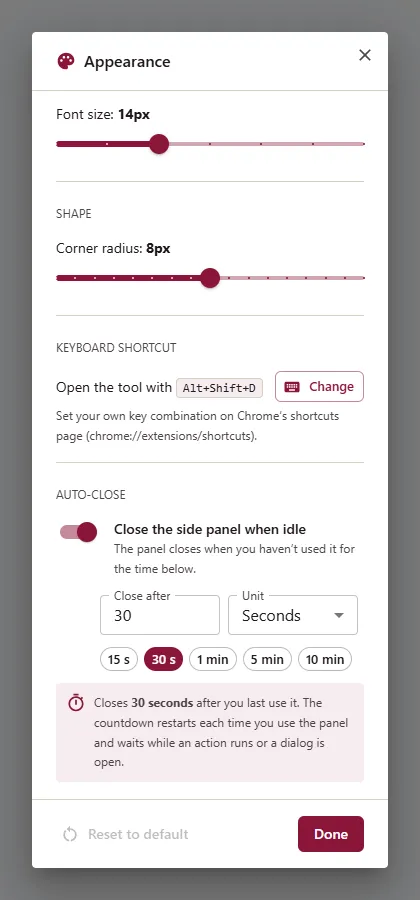
Section titled “Appearance”Select the gear icon in the status bar to open Appearance. Changes apply straight away and follow your browser profile.
- Presets: Brand (the default), Ocean, Forest and Slate.
- Colors: choose the primary, secondary, success and danger colors. A warning appears if text on the primary color would be hard to read.
- Typography and Shape: the font size and how rounded corners are.
- Keyboard shortcut: shows the shortcut that opens the panel. Select Change to set your own.
- Auto-close: see below.
Reset to default brings back the original look.
Auto-close
Section titled “Auto-close”The side panel can close itself when you haven’t used it for a while, so it doesn’t take space on your screen. At the bottom of Appearance:
- Turn Close the side panel when idle on or off. When it’s off, the panel stays open until you close it.
- Set how long it waits, from 5 seconds to 60 minutes, in seconds or minutes, or pick 15 s, 30 s, 1 min, 5 min or 10 min.
The countdown starts when the panel opens and starts over each time you use it, including moving the pointer over it. It waits while an action is running or a dialog is open. The default is 30 seconds.
Light or dark
Section titled “Light or dark”The switch in the status bar sets the theme: Light, Dark or System, which follows your device.
What’s new after updates
Section titled “What’s new after updates”After an update with new features, the panel shows what changed. To stop these notices, clear Show what’s new after updates in the What’s new window. You can read the notes any time from the information button.
Your usage statistics
Section titled “Your usage statistics”The Stats tab of the information window shows how many actions you’ve run, how many different ones, your weekly average and your most used actions. These numbers are stored on your device only.