Security & access
Check who can do what, find out why access is denied, act as another user and manage settings for many users at once.
Users, teams and roles
Section titled “Users, teams and roles”- Users: manage users and their access in the Power Platform admin center.
- Teams: view and manage teams.
- Security Roles: open security role management in the modern or classic experience.
- All Teams Roles: list every team with its security roles.
- All Users Roles: list every active user with their security roles.
- Environment Details: tenant, environment and organization details, such as IDs, version, state, geography and datacenter.
To see your own roles and teams, select the person icon in the side panel’s status bar.
Check User Access
Section titled “Check User Access”Search for any user by name or email to see their access in full: the security roles assigned to them directly and the ones they get through their teams.
Impersonate a user
Section titled “Impersonate a user”- In Check User Access, select the user.
- Select Impersonate User.
Requests from that tab then run as the selected user, and a banner shows who you’re acting as until you select Stop. Impersonation works with Dynamics 365 online and on-premises and needs the Act on Behalf of Another User privilege. It can end when you switch, suspend or refresh the tab.
Access Denied Explainer
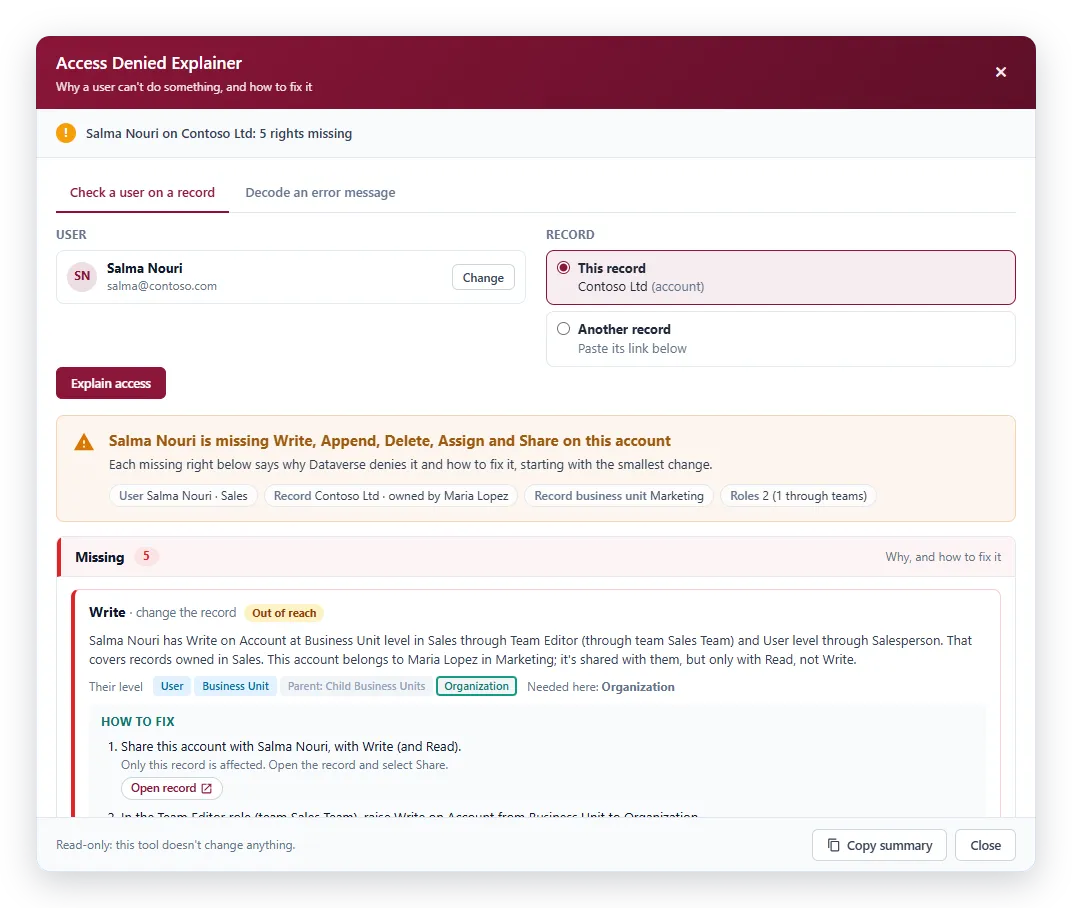
Section titled “Access Denied Explainer”For System Administrators. Find out why a user can’t open or change a record, and how to fix it.
- Search for the user, as in Check User Access.
- Check them on the record you’re on, or on any record whose link you paste.
For each access right the user is missing (Read, Write, Append, Append To, Delete, Assign, Share or Create), the result says why it’s denied: no security role gives the privilege, or a role gives it at a level that doesn’t reach this record, for example business unit level when the record belongs to another business unit. A level bar shows the level the user has and the level the record needs.
Fixes are listed from the smallest change to the largest, with links: share the record, add the user to the owning team, raise the level in a named role, assign the record or add the privilege to a role. The rights the user does have show where they come from: ownership, a team, sharing or a role.
Decode an error message
Section titled “Decode an error message”Paste an access-denied error, for example Principal user (Id=…) is missing prvReadAccount privilege or SecLib::AccessCheckEx failed … AccessRights: WriteAccess. The extension finds the user, table, record and privilege in it and runs the same check. If the error doesn’t name a user, you pick one.
Nothing is changed. Copy summary copies the result as text for a ticket. Column security, business rules and plug-ins can also block a user; this tool doesn’t check them.
User Settings
Section titled “User Settings”Bulk-edit personal settings such as the paging limit, time zone and language for one user or many at once, instead of changing them user by user.