Download files
The Download page downloads the files you set up on the Attachments page, for the records ticked on the Records page.
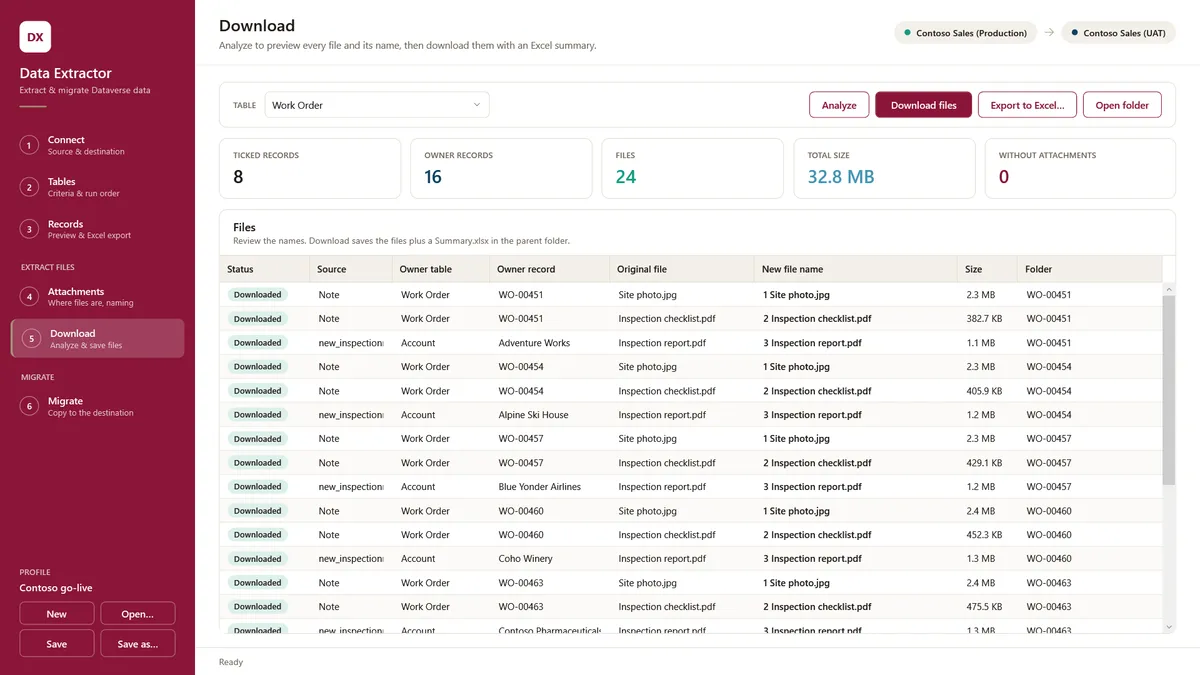
Analyze first
Section titled “Analyze first”Select Analyze. The app lists every file and its final name without downloading anything. The counters show the Ticked records, the Owner records, the Files, the Total size and the records Without attachments.
The list shows, for each file, its status, its source (a note or a file column), the owner table and record, the original file name, the new file name from your templates, the size and the folder.
Download
Section titled “Download”Select Download files. The status of each file changes from Pending to Downloading and Downloaded, or Failed with the reason. Files with no content are marked Empty file. You can cancel at any time.
When it’s done, Open folder opens the download folder in Windows Explorer.
Excel summary
Section titled “Excel summary”Export to Excel… saves the file list as a Files sheet, with the record, the related table and record, the source, the original and saved file names, the size, the status, any error and the path of each file. Saved files are linked, so you can open them from Excel.