Navigation
Navigation tools take you straight to records, lists, processes and administration pages, from any Dynamics 365 page.
Records and lists
Section titled “Records and lists”Open by ID
Section titled “Open by ID”Enter a table and a record GUID to open the record. If you don’t know the table, leave it empty: the extension finds which table the ID belongs to. You can also paste up to 20 IDs separated by semicolons and open each record from the results.
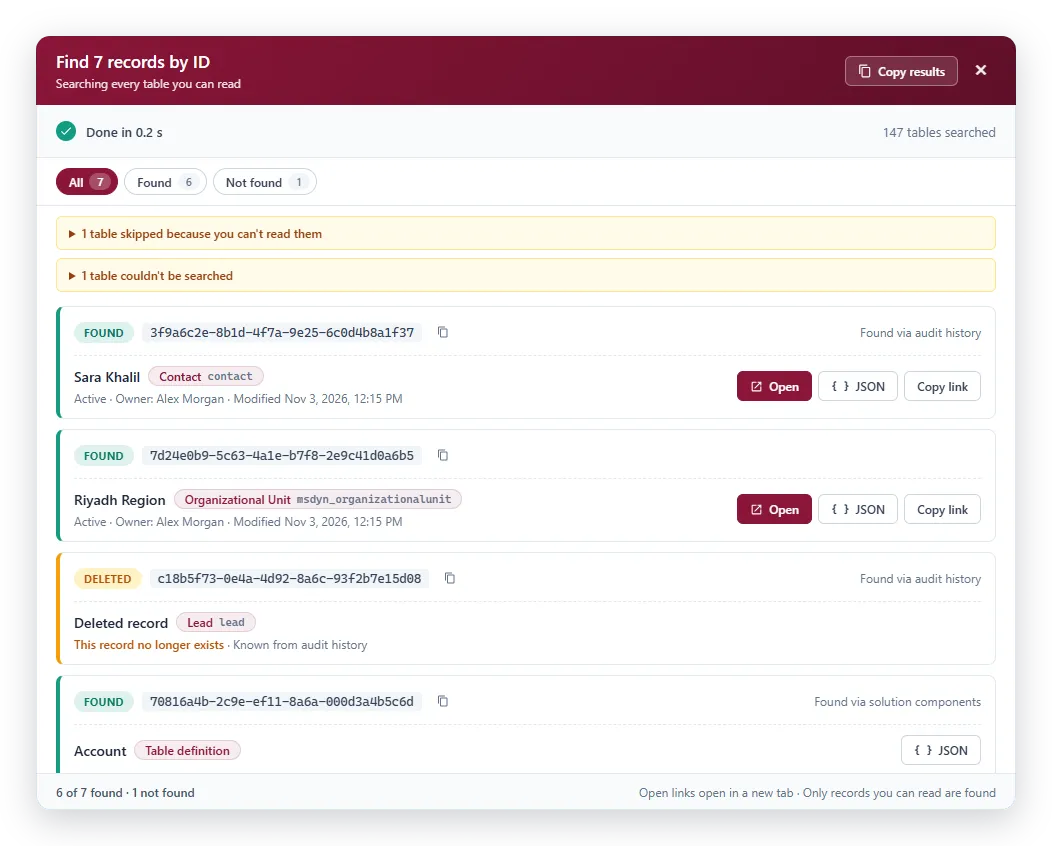
New Record and Open List
Section titled “New Record and Open List”New Record opens a new form for any table. Open List opens the list view of any table.
Record Count
Section titled “Record Count”Counts the records in a table, or the results of a FetchXML query, without opening a view.
Home and Advanced Find
Section titled “Home and Advanced Find”Home returns to the app’s home page. Advanced Find opens advanced search to build a query.
Pin to Side Panel
Section titled “Pin to Side Panel”Pins the current page to the app’s side navigation, so you can come back to it quickly.
Customization
Section titled “Customization”Entity Editor
Section titled “Entity Editor”Search for a table by its logical name and open it in the table editor.
Solutions and Solutions History
Section titled “Solutions and Solutions History”Solutions opens solution management in the modern or classic experience. Solutions History shows solution imports, upgrades and other solution operations with their status.
Processes
Section titled “Processes”Lists every process in the environment: cloud flows, workflows, actions, business rules, business process flows and custom APIs. Filter and sort them, open any of them in its designer, or view and copy its definition as JSON or XAML. To see only one table’s processes, use Table Processes on a form.
Administration
Section titled “Administration”- System Jobs: monitor system jobs and workflow runs.
- Plugin Trace Logs: open the plug-in trace log list.
- Mailboxes: manage mailboxes and email settings.
- Emails: open the Emails list.
- Settings (Classic): open Advanced Settings in the classic interface.
- Environments: see all your environments in Power Platform.
Some of these open Microsoft online pages, such as the Power Platform admin center, and are available for Dynamics 365 online only.