Preview and export records
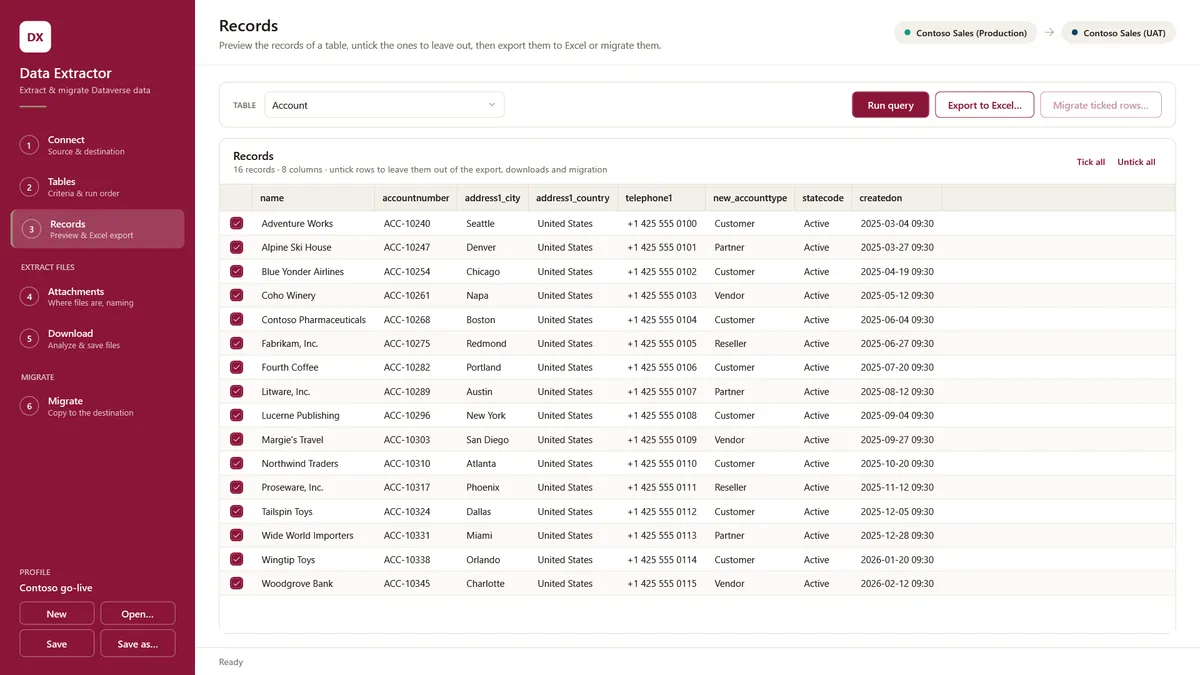
The Records page shows the records of a table before you export, download or migrate them.
Preview
Section titled “Preview”- Choose the table in TABLE.
- Select Run query. The grid shows the records that match the criteria, with the columns you chose. Lookups show the name of the related record.
- Untick the rows to leave out of the export, the downloads and the migration. Tick all and Untick all help with long lists.
The summary above the grid shows how many records and columns there are.
Export to Excel
Section titled “Export to Excel”Select Export to Excel…, tick the columns to export and save the file. The first ticked column identifies the records on the Files sheet when you also download attachments. The file is named after the table and the time, for example Account 2026-11-24 1430.xlsx.
Migrate the ticked rows
Section titled “Migrate the ticked rows”Migrate ticked rows… opens the Migrate page with only the ticked records of this table queued, which is useful to retry a few records or to move a hand-picked selection.