Debugging & development
Tools for finding out what goes wrong, and for building and maintaining customizations without leaving the page.
Troubleshoot the form
Section titled “Troubleshoot the form”Debug Flags
Section titled “Debug Flags”Switch Microsoft’s troubleshooting flags on or off for the current tab, then reload the page with them. For example, turn off all or specific form handlers and libraries to find the script that causes a problem, turn off controls, the business process flow or the command bar, or turn on dark mode, Monitor and performance details. The flags apply to this tab only, until you clear them.
Command Checker and Clear Flags
Section titled “Command Checker and Clear Flags”Command Checker turns on Microsoft’s Command Checker, which shows why a command bar button is visible or hidden and which rules decide it. Clear Flags removes every debug flag and returns the page to normal.
Plug-in Steps
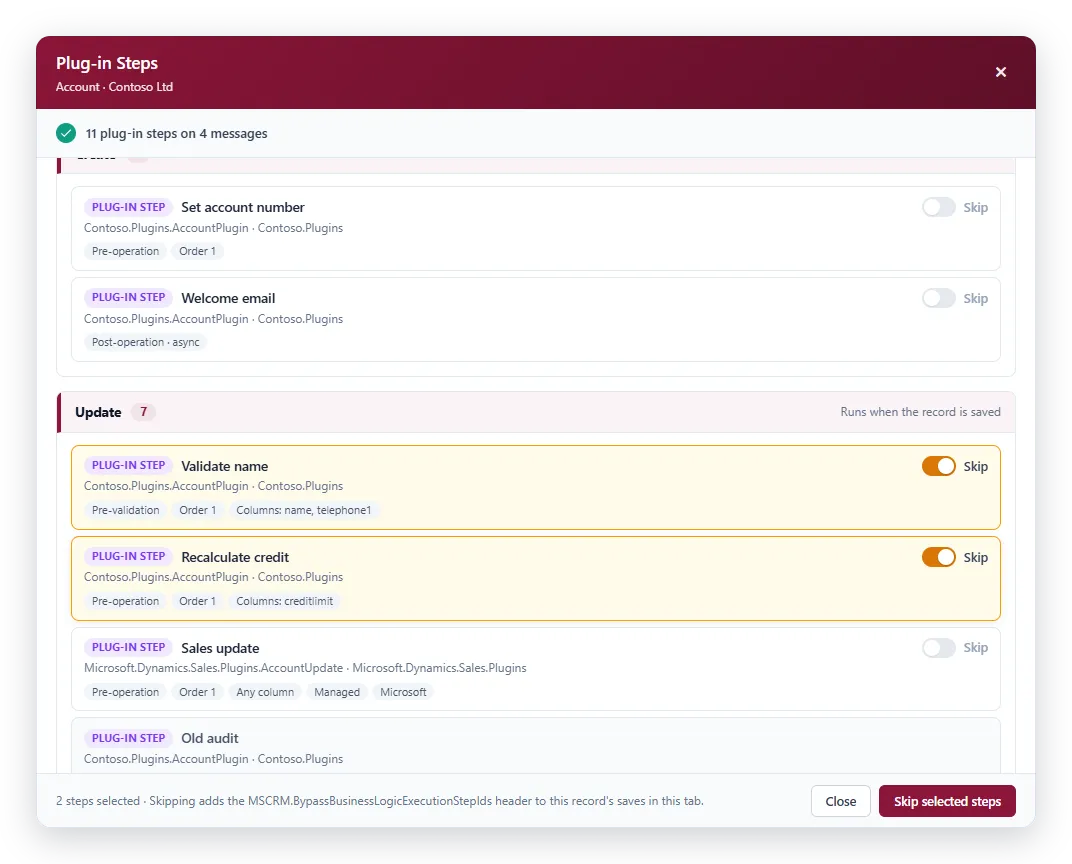
Section titled “Plug-in Steps”Lists the plug-in steps registered on the record’s table for every message. To test without some of them, turn on Skip for those steps and select Skip selected steps: your saves of this record, from this tab only, then run without them. Other users, other tabs, imports and integrations still run every step.
- Needs the Bypass Custom Business Logic privilege (System Administrators have it).
- A banner shows while skipping is on. It turns off when you leave the record.
- One save can skip up to 3 steps, unless an administrator raises the limit. Microsoft’s own steps can’t be skipped.
- The first time on an environment, select Allow access and confirm in the small window that opens.
Query data
Section titled “Query data”Execute FetchXML
Section titled “Execute FetchXML”Run a FetchXML query and browse the results in a searchable table.
Dataverse REST Builder
Section titled “Dataverse REST Builder”Opens the full Dataverse REST Builder in a new tab, already connected to the current environment through your browser session. Build, run and copy Web API requests without an app registration or an access token.
Customize
Section titled “Customize”Web Resource Editor
Section titled “Web Resource Editor”Browse the web resources in your unmanaged solutions, edit HTML, CSS and JavaScript with syntax highlighting, then save and publish without leaving the page. Form Events, Field Dependencies and Execution Tracer open scripts here, at the right function.
Translations
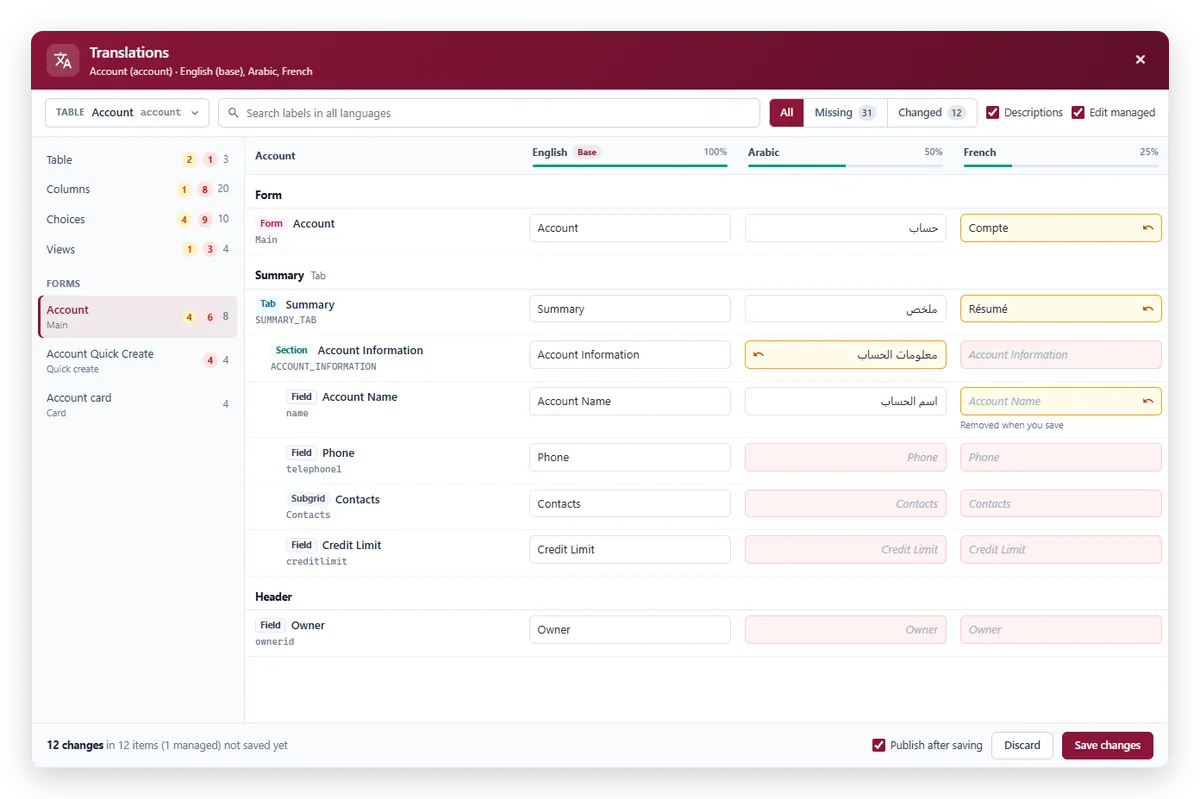
Section titled “Translations”For System Administrators. Pick any table and edit its labels in every language of the environment, side by side: the table names, columns and descriptions, choices, form names, tabs, sections, field labels and views. It opens on the table and form you’re on.
- Every language has its own column, with the base language first. Missing shows what still needs a translation, Changed shows your unsaved edits, and search looks through every language at once.
- Saving writes only the cells you changed, then publishes the table unless you turn that off.
- Labels that come from a managed solution are locked. Edit managed unlocks them after a warning.
Check a deployment
Section titled “Check a deployment”Environment Variables
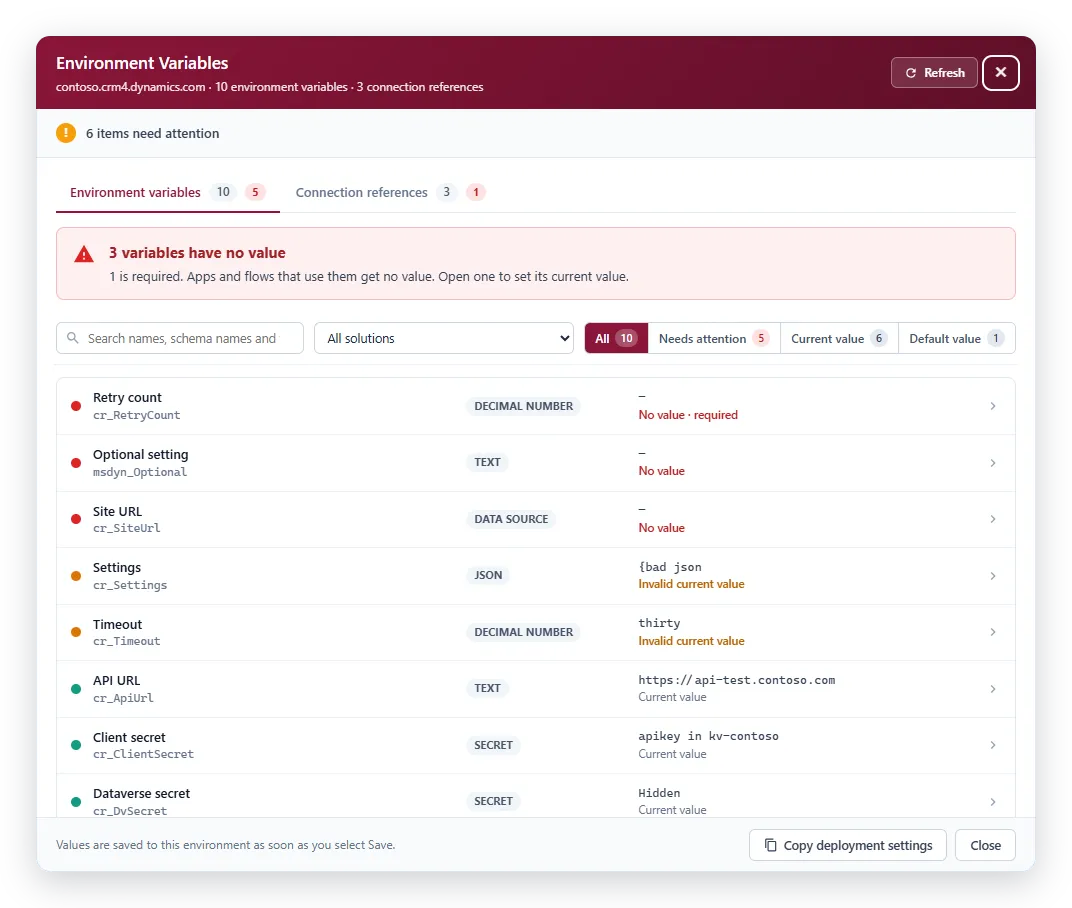
Section titled “Environment Variables”Check every environment variable and connection reference in the environment, for example after a deployment. Problems come first:
- Variables with no value, with required ones on top.
- Values that don’t fit the variable’s type, which Dataverse doesn’t check.
- Connection references without a connection.
Open a variable to compare its default and current value, and set the current value with an editor that fits its type, including the parts of an Azure Key Vault secret. Remove current value goes back to the default. Each item lists the flows and apps that use it and the solutions it’s in. Copy deployment settings copies a settings file for a solution import with this environment’s values. Secrets are never shown or copied.
Read Web API responses
Section titled “Read Web API responses”Dataverse Web API responses that you open in the browser, for example with Web API, Meta Data or Entity Definition, are shown in a formatted viewer: fold and unfold, filter, switch to the raw text, copy or download, with errors shown at the top.