All tools
Every action in the side panel, by section, with what it does in one line. Select a section title for the full details. To find an action quickly in the extension, type part of its name in Search all actions.
Available when a record form is open.
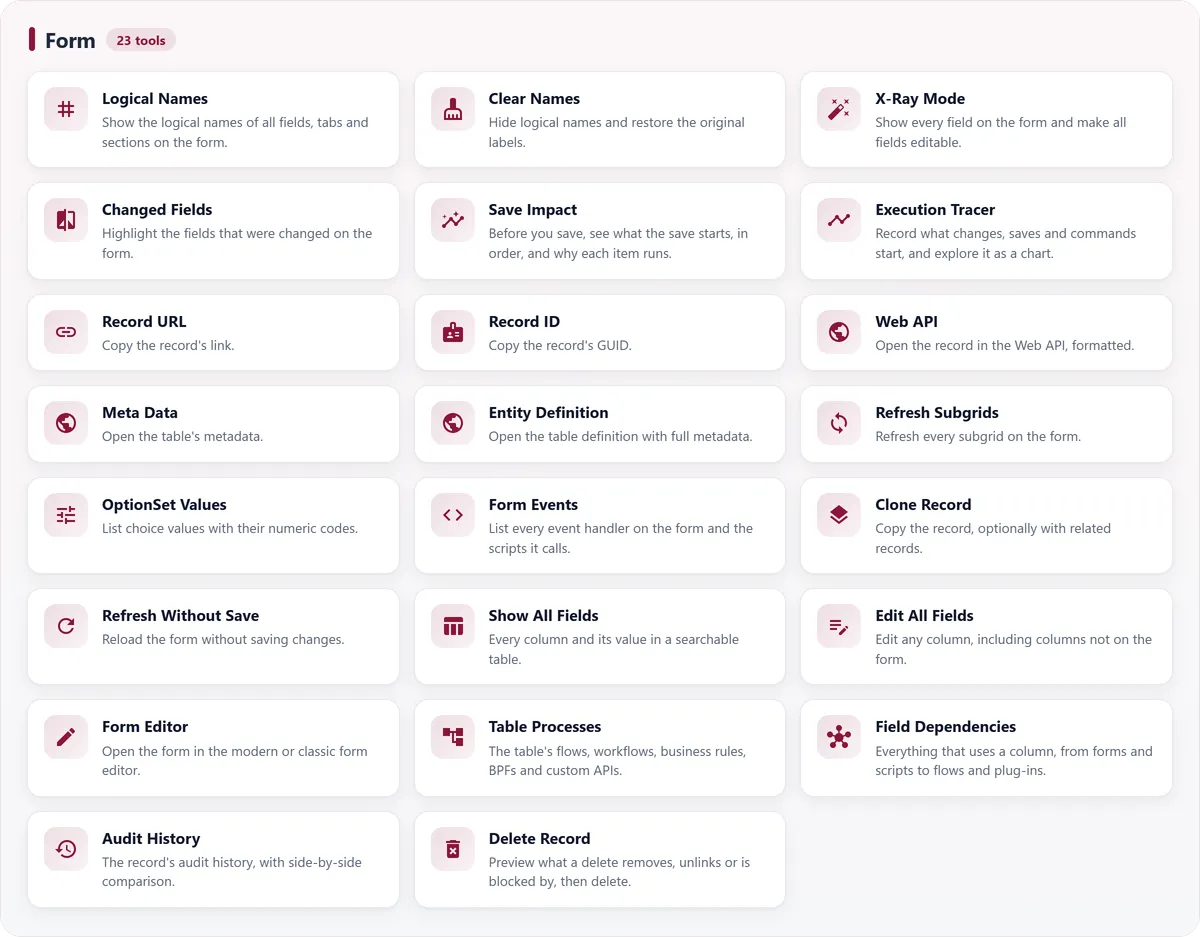
- Logical Names: show the logical names of all fields, tabs and sections on the form.
- Clear Names: hide logical names and restore the original labels.
- X-Ray Mode: show every field on the form and make all fields editable.
- Changed Fields: highlight the fields that were changed on the form.
- Save Impact: before you save, see what the save starts, in order, and why each item runs.
- Execution Tracer: record what changes, saves and commands start, and explore it as a chart.
- Record URL: copy the record’s link.
- Record ID: copy the record’s GUID.
- Web API: open the record in the Web API, formatted.
- Meta Data: open the table’s metadata.
- Entity Definition: open the table definition with full metadata.
- Refresh Subgrids: refresh every subgrid on the form.
- OptionSet Values: list choice values with their numeric codes.
- Form Events: list every event handler on the form and the scripts it calls.
- Clone Record: copy the record, optionally with related records.
- Refresh Without Save: reload the form without saving changes.
- Show All Fields: every column and its value in a searchable table.
- Edit All Fields: edit any column, including columns not on the form.
- Form Editor: open the form in the modern or classic form editor.
- Table Processes: the table’s flows, workflows, business rules, BPFs and custom APIs, with their definitions.
- Field Dependencies: everything that uses a column, from forms and scripts to flows and plug-ins.
- Audit History: the record’s audit history, with side-by-side comparison.
- Delete Record: preview what a delete removes, unlinks or is blocked by, then delete.
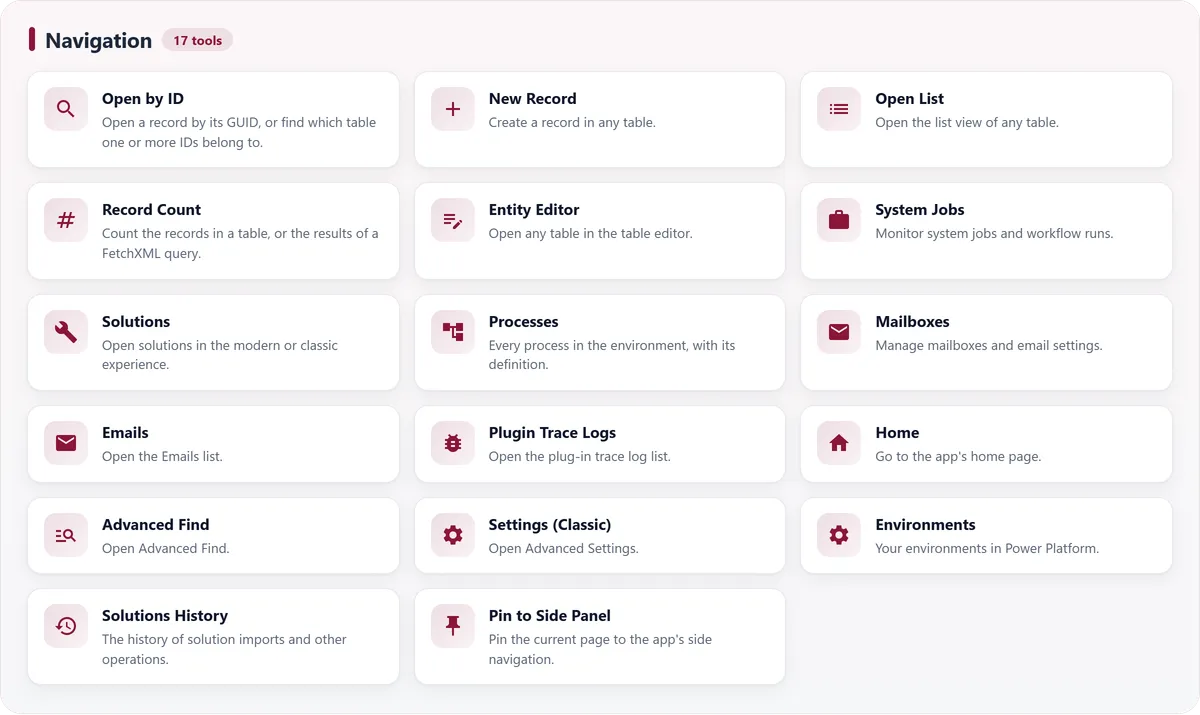
- Open by ID: open a record by its GUID, or find which table one or more IDs belong to.
- New Record: create a record in any table.
- Open List: open the list view of any table.
- Record Count: count the records in a table, or the results of a FetchXML query.
- Entity Editor: open any table in the table editor.
- System Jobs: monitor system jobs and workflow runs.
- Solutions: open solutions in the modern or classic experience.
- Processes: every process in the environment, with its definition.
- Mailboxes: manage mailboxes and email settings.
- Emails: open the Emails list.
- Plugin Trace Logs: open the plug-in trace log list.
- Home: go to the app’s home page.
- Advanced Find: open Advanced Find.
- Settings (Classic): open Advanced Settings.
- Environments: your environments in Power Platform.
- Solutions History: the history of solution imports and other operations.
- Pin to Side Panel: pin the current page to the app’s side navigation.
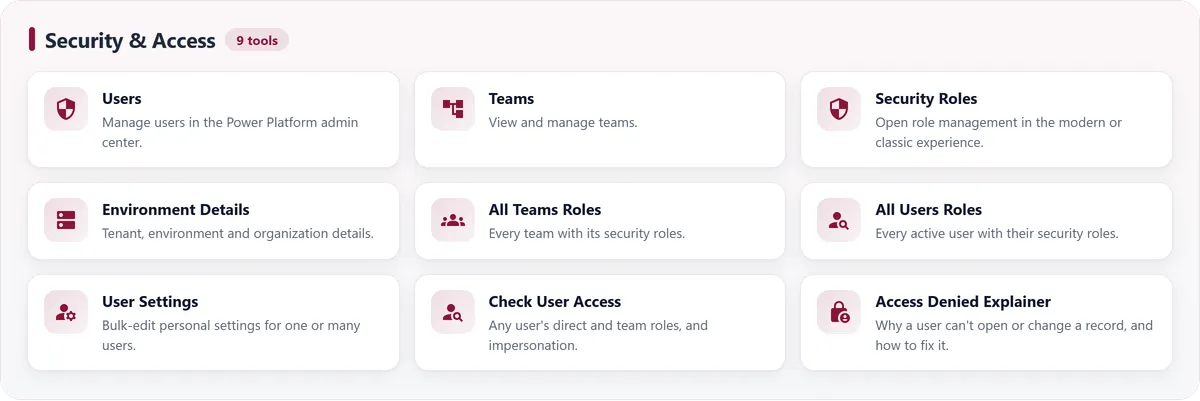
- Users: manage users in the Power Platform admin center.
- Teams: view and manage teams.
- Security Roles: open role management in the modern or classic experience.
- Environment Details: tenant, environment and organization details.
- All Teams Roles: every team with its security roles.
- All Users Roles: every active user with their security roles.
- User Settings: bulk-edit personal settings for one or many users.
- Check User Access: any user’s direct and team roles, and impersonation.
- Access Denied Explainer: why a user can’t open or change a record, and how to fix it.
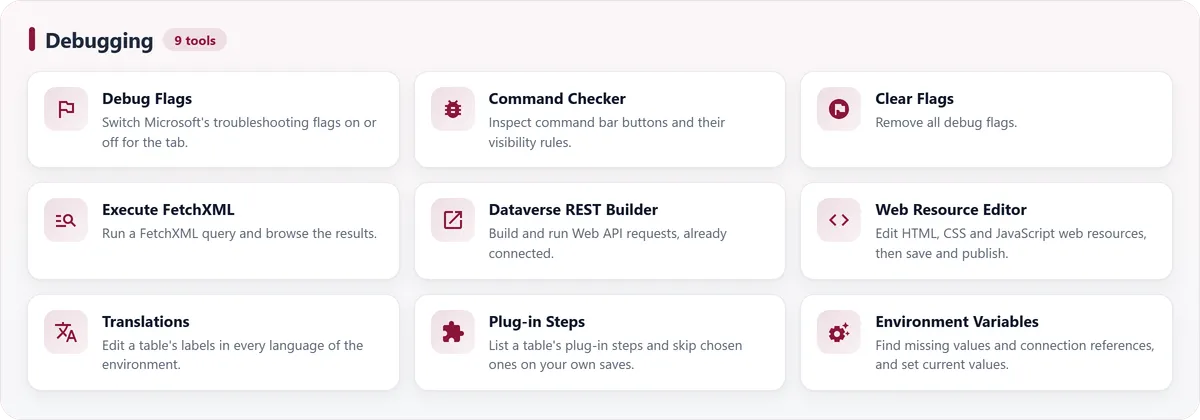
- Debug Flags: switch Microsoft’s troubleshooting flags on or off for the tab.
- Command Checker: inspect command bar buttons and their visibility rules.
- Clear Flags: remove all debug flags.
- Execute FetchXML: run a FetchXML query and browse the results.
- Dataverse REST Builder: build and run Web API requests, already connected.
- Web Resource Editor: edit HTML, CSS and JavaScript web resources, then save and publish.
- Translations: edit a table’s labels in every language of the environment.
- Plug-in Steps: list a table’s plug-in steps and skip chosen ones on your own saves.
- Environment Variables: find missing values and connection references, and set current values.
- My Commands: save your own JavaScript snippets and run them on the page with one click.