Install and sign in
Requirements
Section titled “Requirements”- Windows 10 (version 1809 or later) or Windows 11, 64-bit.
- Microsoft Edge WebView2 Runtime, used for the Microsoft sign-in window. It’s included in Windows 11 and current Windows 10. If it’s missing, the app tells you and links to the WebView2 download.
- Dynamics 365 or Dataverse online. On-premises environments and connection strings aren’t supported.
- A Microsoft work or school account with access to the environments you use. No administrator rights on your PC are needed.
Install
Section titled “Install”Data Extractor & Migrator will be available from the Microsoft Store, which verifies and signs the package and keeps the app up to date. Get notified when it’s available.
Sign in
Section titled “Sign in”- Start the app. The Connect page opens.
- Select Sign in with Microsoft. Microsoft’s sign-in page opens in a window titled Sign in to your account.
- Sign in with your work or school account. The app then lists every Dataverse environment your account can access, with its name, address, region and version.
To use another account, select Switch account next to your name.
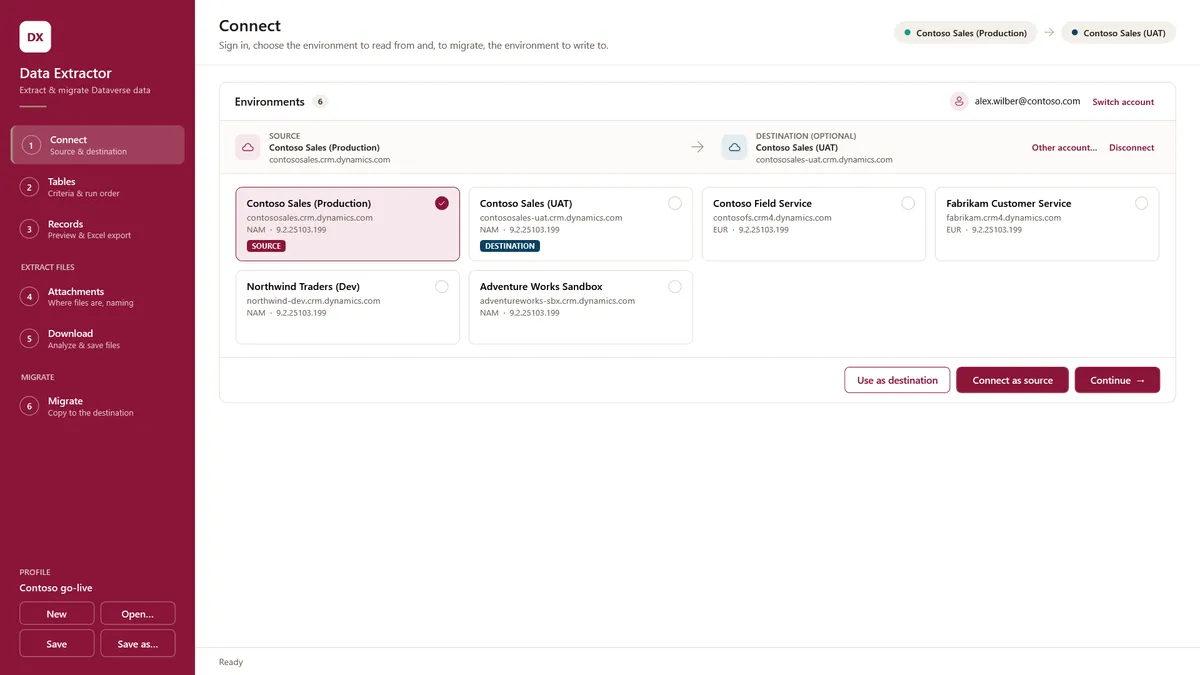
Choose the source and the destination
Section titled “Choose the source and the destination”The band at the top of the environment list shows your choice: SOURCE on the left and DESTINATION (OPTIONAL) on the right.
- Source: select an environment and Connect as source (or double-click it). This is the environment records are read from.
- Destination: to migrate, select another environment and Use as destination. Without a destination, the app works in extraction-only mode (None — extraction only).
- Other account…: choose a destination that belongs to another account or tenant. A second sign-in window opens.
- Disconnect removes the destination.
When the source is connected, select Continue → to go to the Tables page. The app remembers the environments you used last.