Getting started
This page shows you how to install the extension, open it next to your Dynamics 365 app and find your way around the side panel.
Install the extension
Section titled “Install the extension”- Google Chrome: open the extension’s page in the Chrome Web Store and select Add to Chrome.
- Microsoft Edge: open the extension’s page in Microsoft Edge Add-ons and select Get.
Then pin it to the toolbar so it’s always one click away: select the Extensions icon (the puzzle piece) and the pin next to Dynamics 365 CRM Utility Center.
Open the side panel
Section titled “Open the side panel”Open a Dynamics 365 or Power Apps model-driven app page, then use any of these:
- Select the extension icon in the browser toolbar.
- Press Alt+Shift+D.
- Right-click the page and select Open Dynamics 365 CRM Utility Center.
The side panel belongs to the tab you opened it in. It hides when you switch to another tab and comes back when you return.
Find your way around
Section titled “Find your way around”Header
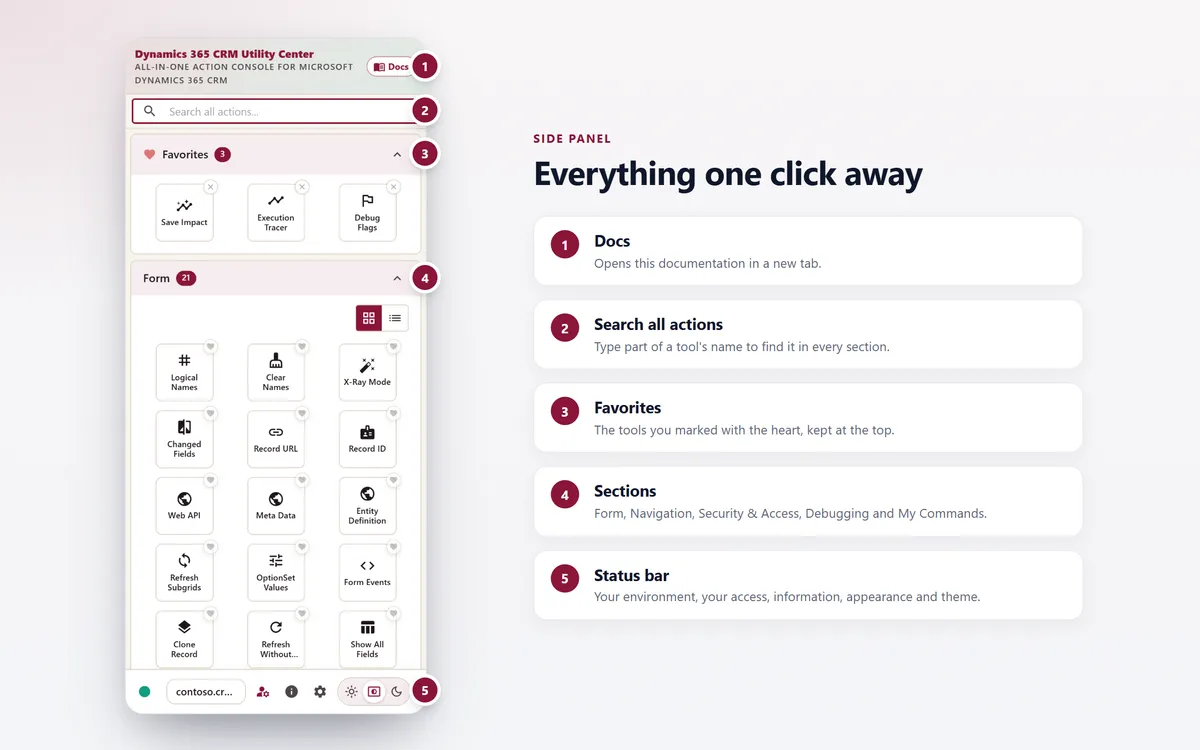
Section titled “Header”The top of the panel shows the product name and the Docs button, which opens this documentation. While you’re impersonating another user, a banner below it shows who you’re acting as.
Search all actions
Section titled “Search all actions”Type any part of an action’s name, for example audit, flags or trace. Every section filters as you type. Hover over an action to see what it does.
Sections
Section titled “Sections”- Favorites: the actions you marked with the heart icon.
- Recently Used: the actions you used last.
- Form: tools for the record form that’s open. They’re available when a record form is open in the tab.
- Navigation: open records, lists, processes, settings and admin pages.
- Security & Access: users, teams, security roles and access checks.
- Debugging: troubleshooting and developer tools.
- My Commands: your own JavaScript commands.
Status bar
Section titled “Status bar”The bar at the bottom of the panel shows:
- Environment: the environment the panel is connected to. Select it to open the Power Platform admin center.
- Your access (person icon): your user, security roles and teams.
- Information (i): the version, what’s new, this documentation, support and your usage statistics.
- Appearance (gear): colors, font size, keyboard shortcut and auto-close.
- Theme: Light, System or Dark.
Run an action
Section titled “Run an action”Select an action to run it on the page in the tab. Depending on the action, the result opens in a window on the page, in a new tab or in a dialog in the side panel. Messages at the bottom of the panel tell you when something worked, or why it didn’t.
Form tools need a record form to be open in the tab. If the panel says it isn’t connected, open a Dynamics 365 page in the tab and wait for it to finish loading.
After an update
Section titled “After an update”When the extension updates with new features, a NEW badge appears on its toolbar icon and the side panel shows what changed.
- Select See what’s new for the release notes, or Try it to open a new tool directly.
- To read the notes again later, select the information button, then What’s new.
The full history is in the release notes.
Security and your data
Section titled “Security and your data”- The extension uses your current browser session. There’s no separate sign-in.
- Every action runs with your Dynamics 365 security roles, and Dataverse checks every request.
- Settings, favorites and commands stay in your browser. Nothing is collected or tracked.